User
In the user settings you tailor Tafiya to yourself: profile, language, appearance, automatic login and your signature for the mileage confirmation. Under Account data you see your version (skipper or crew), your cruise quota and redeem vouchers.
How to get there
On the home screen tap Settings at the bottom. The User card is on the far left; you reach the other cards by swiping left. The cards for master data, parameters, charts, AIS, weather, tides and AI are visible only to skippers and co-skippers.
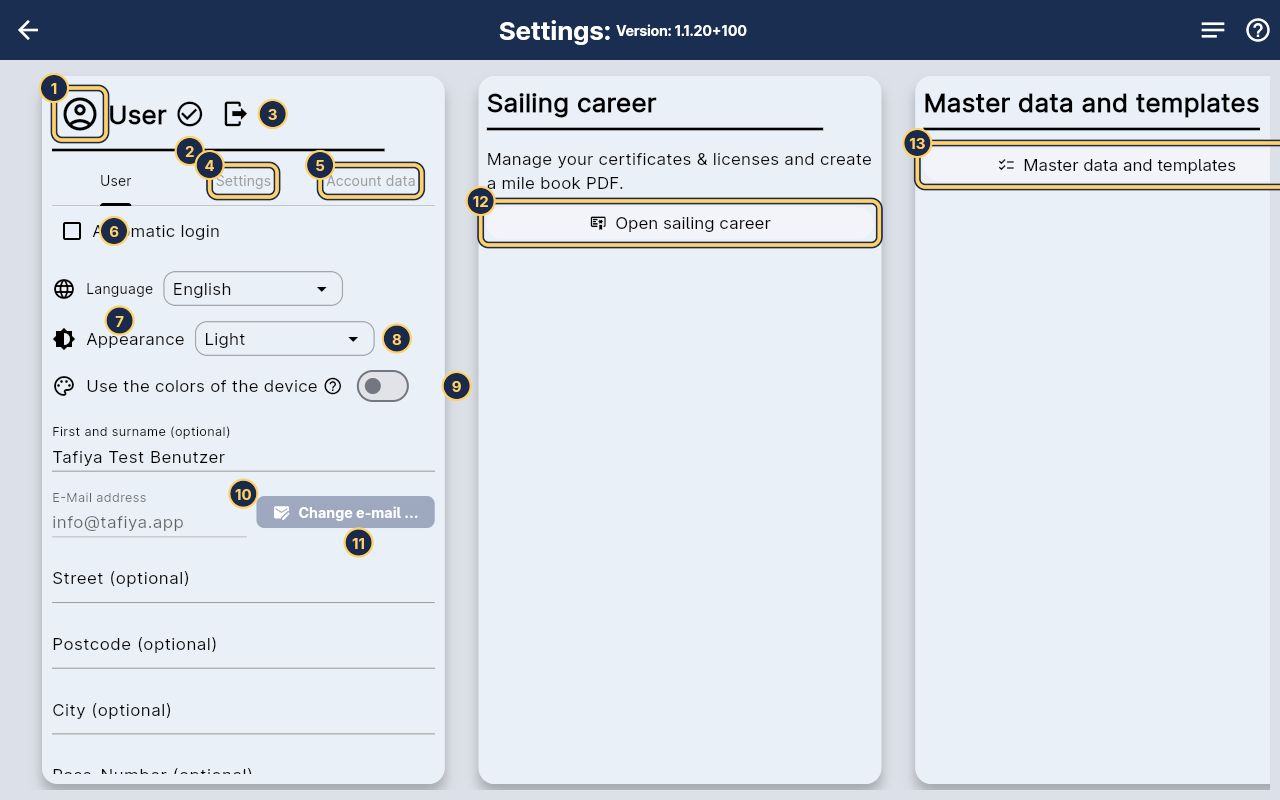
- Profile picture – tap and choose a picture
- Save – all details of the User card
- Log out – back to the login, automatic login is switched off
- Settings – second tab: picture sorting and cruise map
- Account data – third tab: version, cruise quota, voucher
- Automatic login – sign in without a password at the next start
- Language of the app
- Appearance – light, dark or as the system
- Use the colors of the device – colors of the wallpaper or the system instead of the colors of the app; only on devices that offer this
- Name – this is how you appear in the crew list, chat and ship’s cash
- Change e-mail – new address, confirmed via e-mails to the old and the new address
- Open sailing career – certificates and mile book, see its own page
- Master data and templates – catalogs, units, event types
Profile and appearance
- Tap the profile picture (1) to choose a picture from the gallery.
- Tick Automatic login (6) if the app should sign you in without a password at the next start.
- Choose Language (7) and Appearance (8): light, dark or as the system. With the switch Use the colors of the device (9) below, Tafiya follows the colors of your device instead of its own (since version 1.1.20), see Colors of the device.
- Enter your name (10) and, if needed, address and passport details. You need the passport details for crew lists in some sailing areas.
- Tap Save (2).
Colors of the device
(since version 1.1.20) When Use the colors of the device is switched on, Tafiya follows the color scheme of your device:
- Android (version 12 and later): the colors of your wallpaper (Material You). After changing the wallpaper, the new colors apply as soon as you open Tafiya again.
- Windows and macOS: the accent color you have set in the system.
- Linux: the accent color of the desktop.
You still choose light and dark under Appearance. Signal colors such as yellow for active items, green and red stay as they are. On iPhone, iPad and older Android devices there is no such color scheme; the switch does not appear there and Tafiya keeps its own colors. The setting only applies to the device on which you set it.
Further down the card you upload your signature. It is printed on the mileage confirmations your crew creates. You change your e-mail address via Change e-mail (11); you confirm the change via e-mails to the old and the new address. Log out (3) takes you back to the login.
Settings tab
The Settings tab (4) holds two options:
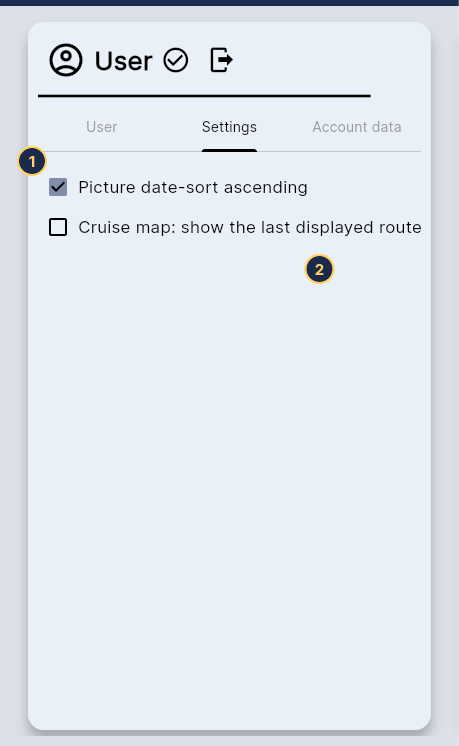
- Picture date-sort ascending – oldest pictures first in the picture gallery
- Cruise map: show the last displayed routes again when opening – on by default
- Picture date-sort ascending (1): the picture gallery shows the oldest pictures first.
- Cruise map: show the last displayed routes again when opening (2): when opened, the cruise map automatically shows the routes you looked at last. On by default.
Account data tab
The Account data tab (5) shows your account status with Tafiya:
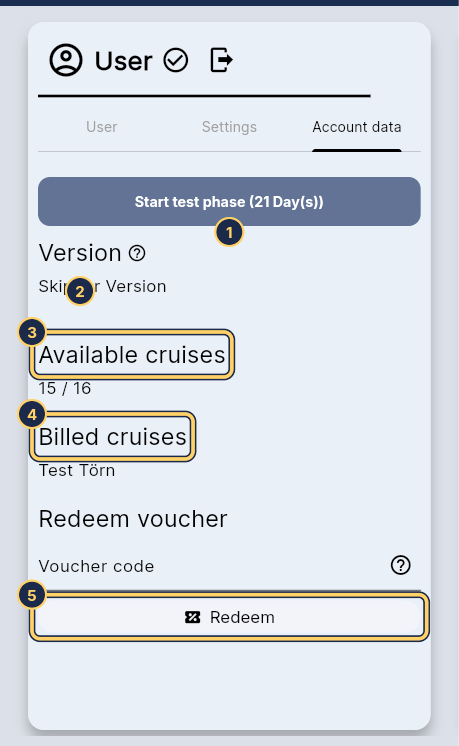
- Start test phase – visible only as long as you have not had a trial period yet
- Version – skipper or crew, the question mark explains the difference
- Available cruises – your quota
- Billed cruises – which cruises have used up the quota
- Redeem voucher – enter the code and redeem it, unlocks cruises
- Version (2): At registration you decide whether to register as skipper or crew member. As a skipper the trial period starts immediately; as a crew member you start it at any later time with Start test phase (1), see Activate the trial period.
- Available cruises (3) and Billed cruises (4): your quota and which cruises have used it up, see Buy cruise quota.
- Redeem voucher (5): enter the code and redeem it; the voucher unlocks further cruises.
See also
- Sailing career: certificates and mile book.
- Parameters: time intervals and automatic functions for skippers.
- Login and password