Ship's cash
In the ship's cash every crew member records what they have spent for the group. From this Tafiya continuously works out each person's share and shows at the end who still owes whom.
How to get there
Open the cruise and tap the Ships cash tile in the cruise hub. All crew members can see the ship's cash. Anyone the skipper has excluded from the ship's cash, see Assemble the crew, does not appear in the settlement.
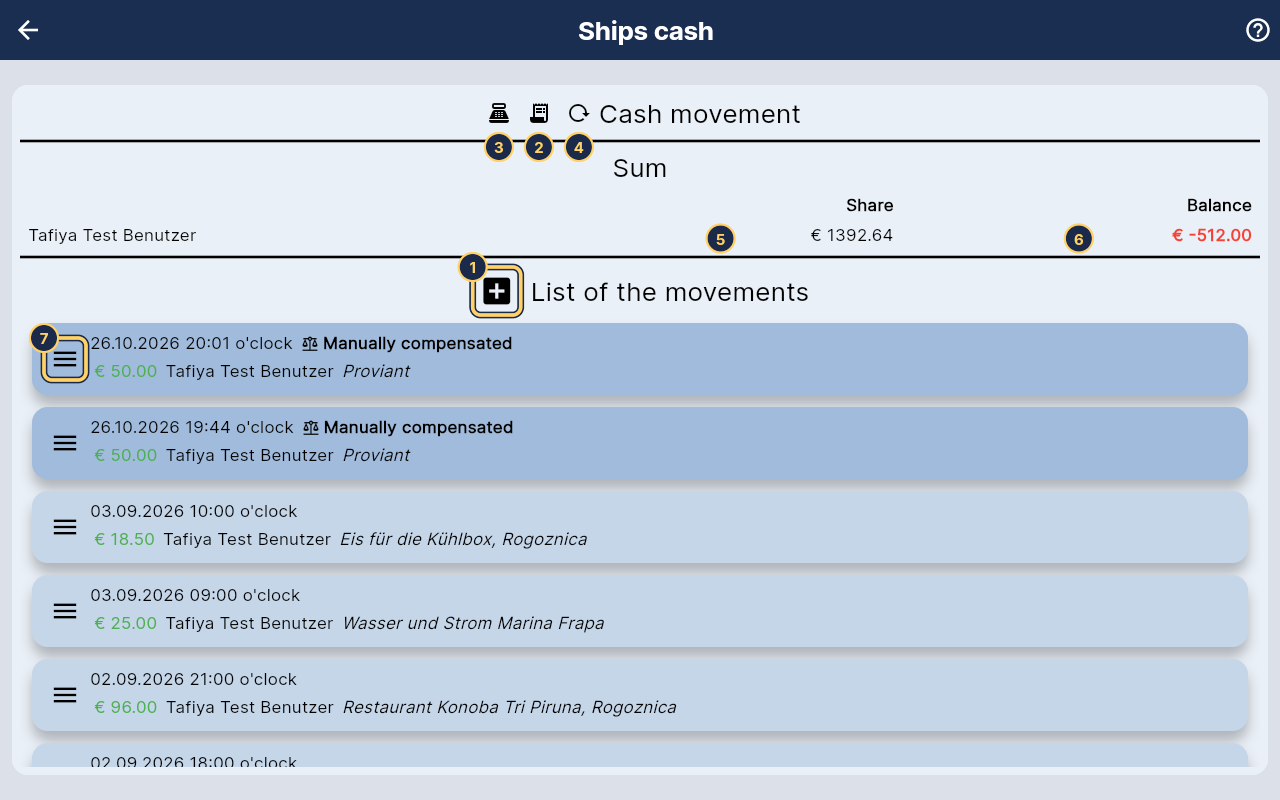
- Add transaction – opens the “Cash movement” dialog
- Final settlement – what you still have to pay or receive
- Compensation payments – book your open payments to others, in cash or via PayPal
- Reload – refresh the ship’s cash from the server
- Share – what each person has to bear of all expenses
- Balance – paid minus share; red means you still owe something
- Transaction menu – view receipt, edit transaction, add receipt or delete transaction
The Sum table shows for each person the Share (5), i.e. what they have to bear of all expenses, and the Balance (6). A red balance means the person has paid less than their share.
Record a transaction
- Tap Add transaction (1).
- Check the Date (1) and enter the Amount (2) in the currency of the ship's cash.
- If only part of the crew is to pay, tap Split (3) and select the persons. You can also include members without ship's cash here.
- Enter a Description (4).
- With Attach receipt (5) you photograph the receipt with the camera or select a picture or PDF. The file name appears in the dialog; with a long press on it you rename it.
- Tap Add (6).
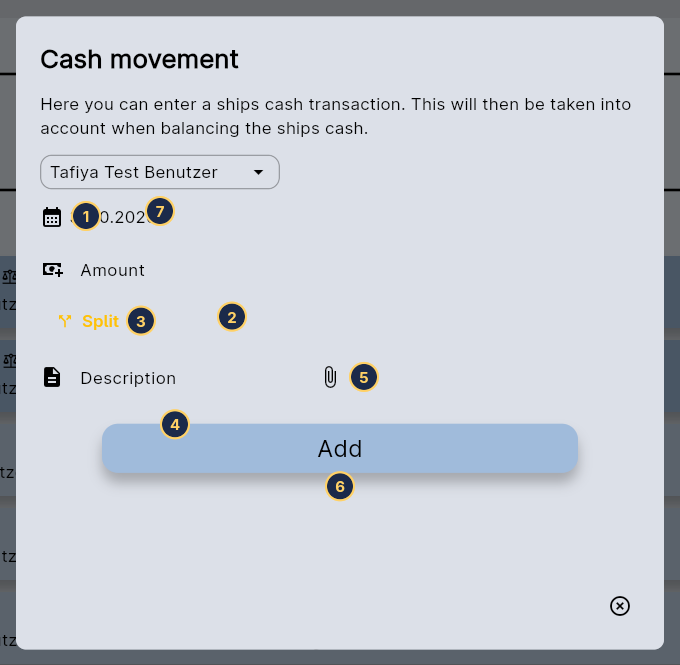
- Date of the transaction – tap to change
- Amount in the currency of the ship’s cash
- Split – divide the amount among certain persons only instead of the whole crew
- Description – what the money was spent on
- Attach receipt – photo with the camera, picture from the gallery or PDF; afterwards you change the name with a long press
- Add – save the transaction
- Payer – skipper only: for whom the transaction is recorded
Change a transaction or add a receipt later
Via the transaction menu (7) in the transaction row you open the receipt, edit the transaction, attach a receipt afterwards or delete the transaction. This only works for your own transactions; the creator of the cruise and the co-skippers may change all transactions.
If a transaction has already been split or is locked by a settlement, the item Add receipt remains available anyway. Amount and allocation do not change. Once the skipper has closed the ship's cash, no more changes are possible.
View the final settlement
- Tap Final settlement (2).
- Under To pay (1) you see what you still owe others, under To receive (2) what others still owe you.
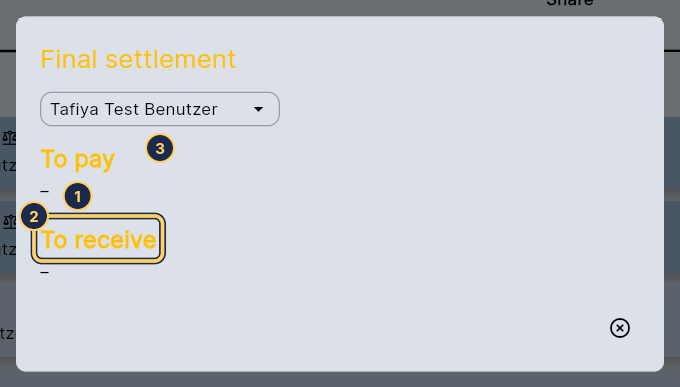
- To pay – open amounts you still owe others; compensation payments already booked are deducted
- To receive – open amounts others still owe you
- Crew member – skipper only: view another person’s settlement
The final settlement shows only the amount actually still open. Compensation payments that are already booked are deducted.
Book and confirm compensation payments
At the end of the cruise everyone pays their open amount directly to the person who has paid out too much.
- Tap Compensation payments (3). You see your open payments.
- Pay in cash or via PayPal and tap the matching symbol behind the payment.
- The payment appears under Pending payments until the recipient confirms it with Confirm payment. The recipient is notified.
- As payer you can withdraw a pending payment again with the bin.
A payment cannot be booked twice; Tafiya rejects a second confirmation with a note. With Reload (4) you fetch the current state from the server at any time.
See also
- Manage ship's cash: settlement and closing of the ship's cash by the skipper.
- Assemble the crew: who takes part in the ship's cash.