Shopping list
With the shopping list you do the provisioning together. What one person ticks off, everyone else sees immediately. So nobody buys twice and nothing is forgotten.
How to get there
Open the cruise and tap the Shoppinglist tile in the cruise hub. The skipper creates the lists under Shopping lists; all crew members can work through them.
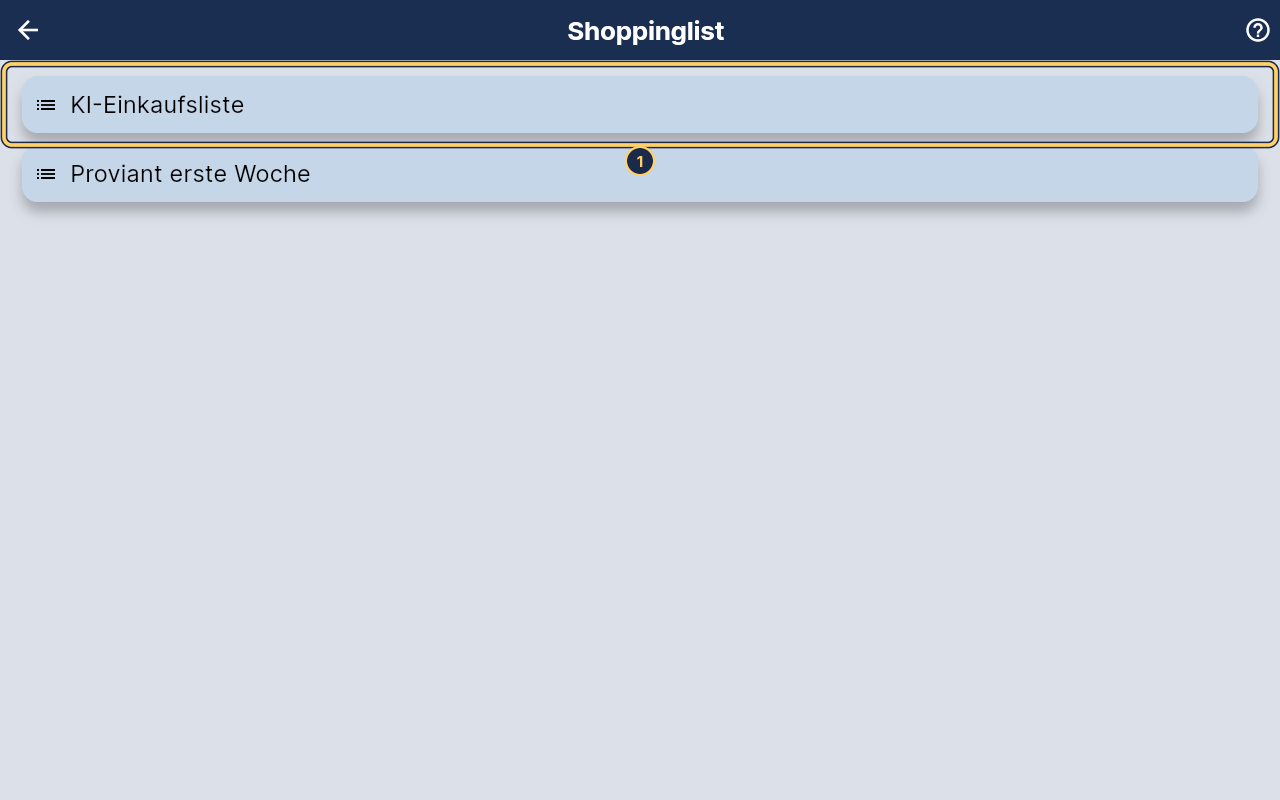
- Shoppinglist – tap to work through it
Work through a list
- Tap the shopping list (1).
- Tick off each position (2) as soon as it is in the trolley. The row is struck through, for everyone else as well.
- With the category filter (1) you show only one category, only your categories or all positions again.
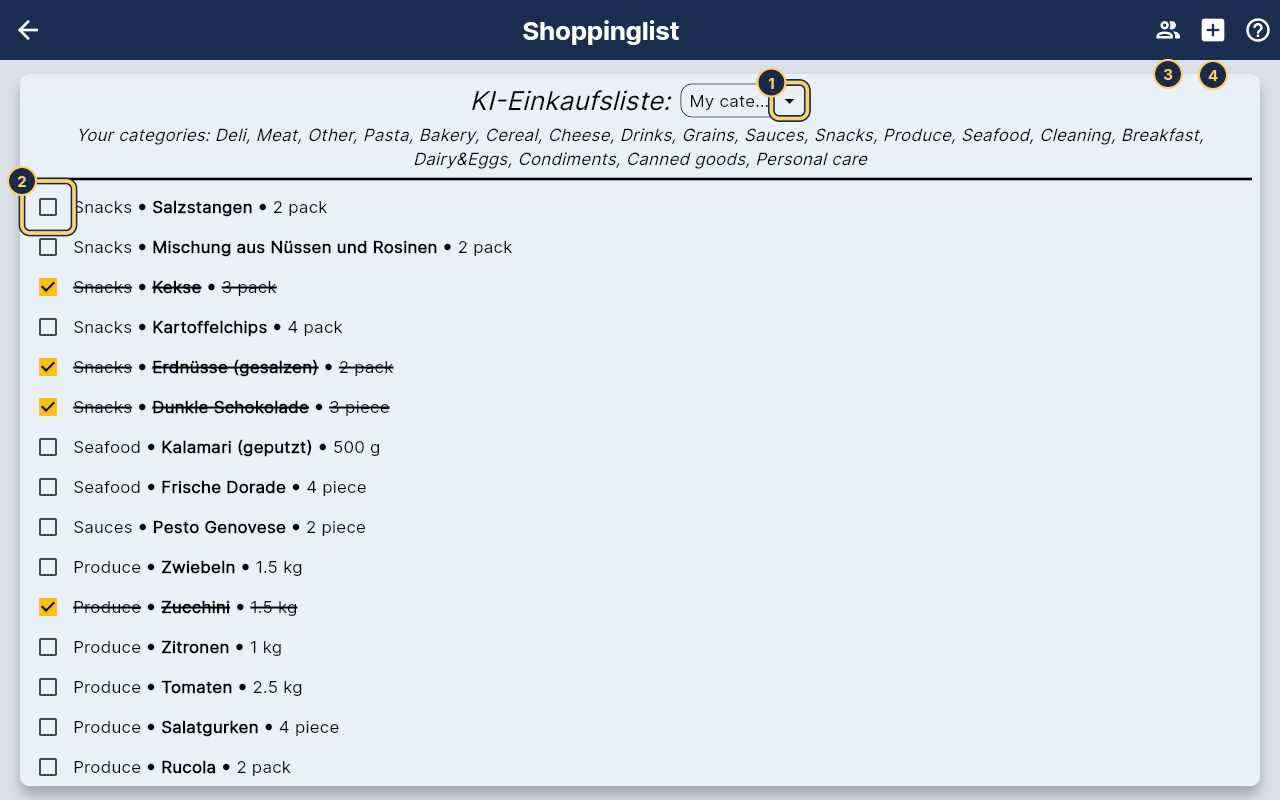
- Category filter – show all positions, only your categories or a single category
- Bought – tick off as soon as the position is in the trolley; everyone else sees it immediately
- Split categories – assign categories to individual crew members
- Add position – enter a position of your own in the list
Without internet your ticks are stored on the device and synchronised as soon as there is a connection again.
Add your own positions
- Tap Add position (4).
- Enter name, quantity, unit and category.
- You can Edit your own positions with the pencil or Delete them with the bin. The skipper's positions can only be ticked off.
- Once you have added something, the bell Notify skipper appears at the top. With it you inform the creator of the cruise about your changes.
Split categories among the crew
For the big shop you split the list: each crew member takes on certain categories and works through only their part.
- Tap Split categories (3).
- For each category tap the crew member who takes it on (4). With All to me (1) you take all open categories, with Distribute evenly (2) Tafiya distributes them in turn.
- With Clear split (3) you delete all assignments again.
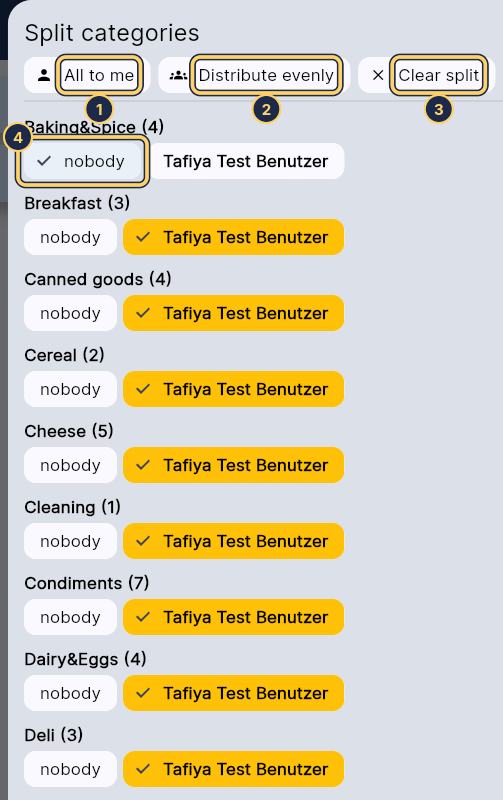
- All to me – assign all open categories to yourself
- Distribute evenly – distribute the open categories among the crew in turn
- Clear split – delete all assignments
- Assignment per category – one chip per crew member; tapping assigns the category to this person
Your categories are then listed above the list under Your categories. With the category filter (1) and My categories you see only the positions you are supposed to get.
See also
- Shopping lists: create lists, also with the help of the AI.
- Who cooks when: the ingredients of the recipes end up on the shopping list.