Master data and templates
In the master data you create templates that you take over into any cruise with a single tap: shopping lists, recipes and packing lists as a catalog. You also set up custom units of measure and custom event types for the logbook.
How to get there
On the home screen tap Settings at the bottom and, in the Master data and templates card, tap the button of the same name. The card is visible to skippers, that is, users who can create their own cruises.
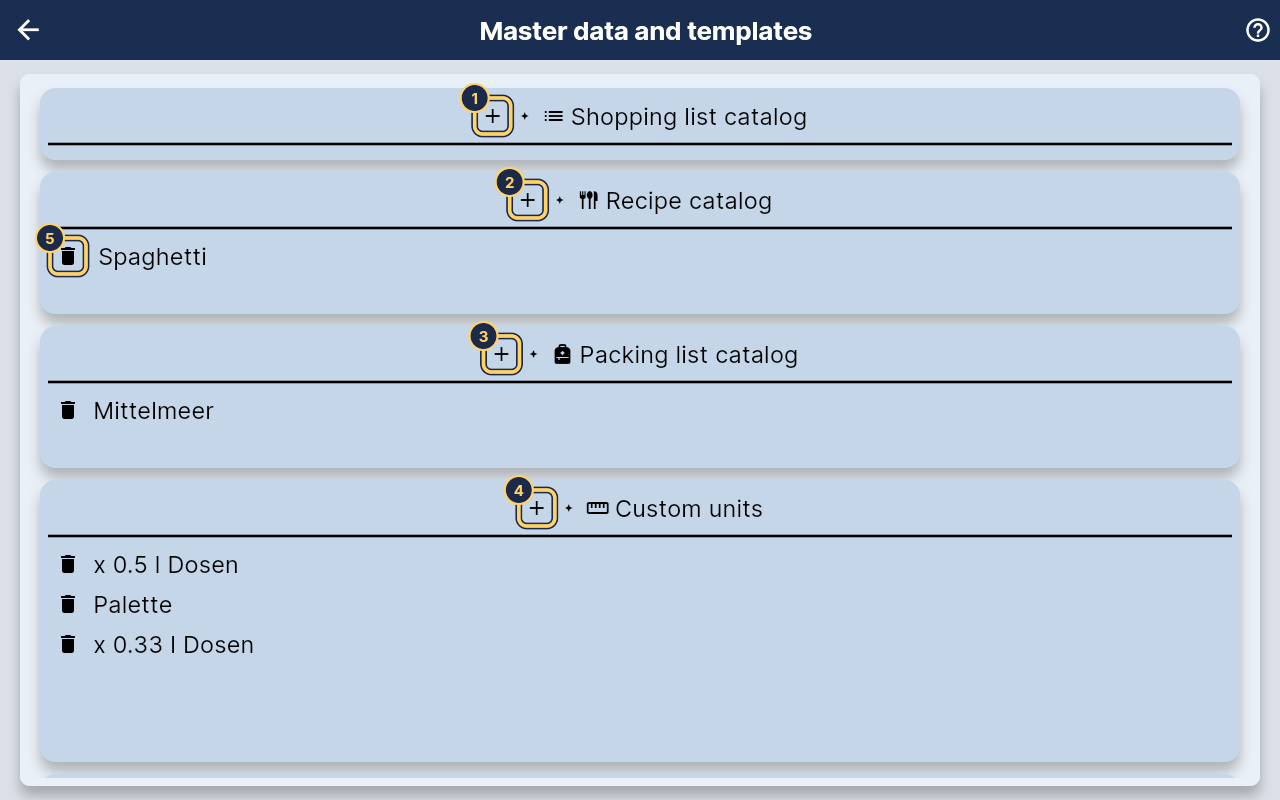
- Create shopping list catalog – enter a name, then record the items
- Create catalog recipe – name and instructions, then the ingredients
- Create packing list catalog
- Create custom unit – e.g. pallet or tray of cans
- Delete – remove the entry from the catalog; tapping the name opens it, a long press renames it
Create catalog lists
Catalog lists are normalised to one person. When loaded into a cruise, the app multiplies the quantities by the crew size.
- In the card you want, tap + (1, 2 or 3) and enter a name. For recipes you also enter the instructions.
- Enter the items or ingredients as in the shopping list.
- Tap Back; the catalog is saved.
Tapping an entry opens it, a long press renames it, Delete (5) removes it. The other way round, you save a finished list or recipe from a cruise as a template with Save to catalog. You can share catalog recipes with other Tafiya users; shared recipes are offered when loading in the cruise.
Custom units
If piece, kg, l and pack are not enough, you create your own units, for example “pallet” or “x 0.5 l cans”.
- In the Custom units card tap + (4) and enter the name.
- From now on the unit is available in every item dialog below the standard units.
Custom event types
Besides the fixed events such as “man overboard” you create your own types, for example “Dolphins”. They are offered in the logbook and on the navigation chart and get their own symbol on the chart.
- Scroll to the Custom event types card and tap + (1).
- Enter the name (1) and the default title (2). The title is entered into every new event of this type.
- Choose an icon (3). Without a search term you see a selection of maritime symbols; with a term you search all of them.
- Tap Save (4).

- Add event type
- Edit – tapping the row opens the type
- Delete – existing logbook entries keep their type
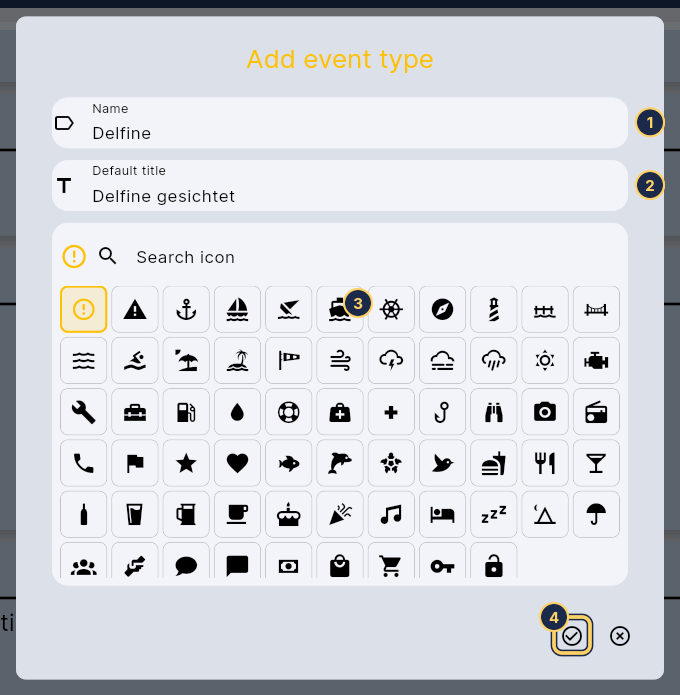
- Name – the type’s name in the selection in the logbook and in navigation
- Default title – entered into every new event of this type
- Search icon – without a search term you see a selection of maritime symbols, with a term all symbols
- Save
Tapping a type opens it for editing (2). If you delete a type (3), existing logbook entries keep their type.
See also
- Shopping lists and Who cooks when: use catalogs in the cruise.
- Manage packing list: assign a packing list catalog.
- Logbook: record events.