Manage ship's cash
As skipper you manage the ship's cash of your cruise: you set the currency, release the compensation, book compensation payments for each crew member, split individual receipts individually and close the cash at the end. How everyone on board records receipts and sees their final settlement is described under Ship's cash.
How to get there
Open the cruise and tap the Manage ship's cash tile in the Skipper section of the cruise hub. The creator of the cruise and the co-skippers see the tile. The compensation and the splitting of receipts you do directly in the Ship's cash tile in the On board section; there you as skipper have more rights than the crew.
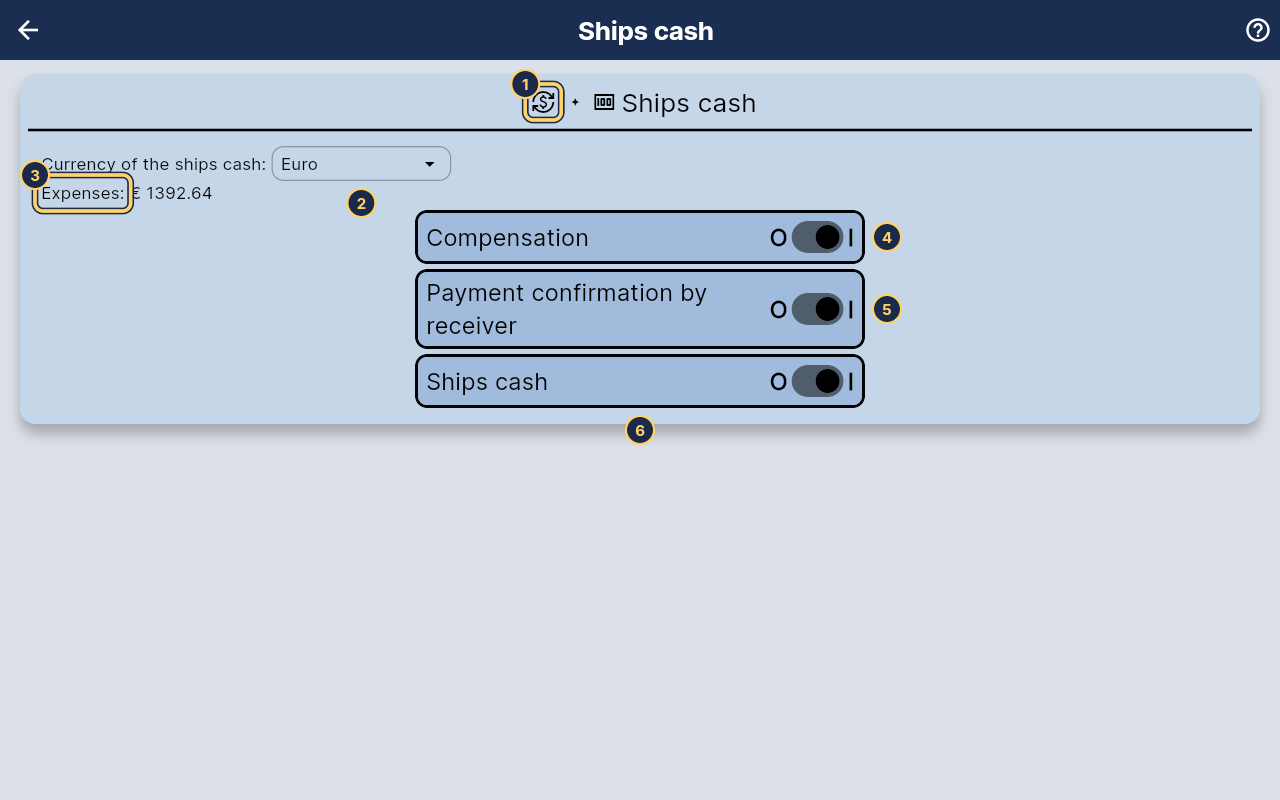
- Exchange rates – show the current daily rates of the Deutsche Bundesbank
- Currency of the ships cash – on a change the app converts all bookings at the rate of their booking day
- Expenses – sum of all bookings of the ship’s cash
- Compensation – on I crew and skipper may book compensation payments; on O (red) the compensation is locked
- Payment confirmation by receiver – on I a compensation payment is booked only once the receiver has confirmed it
- Ship’s cash – on O the cash is closed: no new bookings; only possible when the cash is fully balanced
Set the currency
The ship's cash has one currency in which all bookings are kept. Receipts in other currencies are converted by the app when they are recorded.
- Choose the Currency of the ships cash (2).
- If there are bookings already, the app converts each of them at the rate of its booking day. If a rate is missing, it aborts and reports this.
- With the exchange rate symbol (1) you see the current rates of the Deutsche Bundesbank.
A closed ship's cash can no longer be converted.
Release the compensation and have payments confirmed
With the three switches you control what the crew may do in the ship's cash:
- Compensation (4): on I everyone may book their compensation payments. On O the compensation is locked, for example as long as receipts are still missing.
- Payment confirmation by receiver (5): on I a payment is not booked immediately. It lands under “Pending payments”, the receiver gets a notification and confirms the receipt. Only then is it booked. Until then the payer can withdraw it. A payment cannot be booked twice. If you as skipper book the payment of another crew member, this is always done directly.
- Ship's cash (6): on O the cash is closed, nobody can book any more. Closing is only possible when all compensation payments are booked; otherwise a note appears. You can reopen the cash at any time.
Book the compensation
You book the compensation in the ship's cash itself. As skipper you see the open payments of each crew member there and book them for others too.
- In the cruise hub open the Ship's cash tile and tap the cash register symbol (1).
- At the top choose the crew member (1). Below are their open payments: who pays how much to whom.
- At the payment tap PayPal (2) or Cash (3). The payment is booked; with PayPal the transfer opens in addition.
- When all payments are booked, it says “All paid” there. Now you can close the cash.
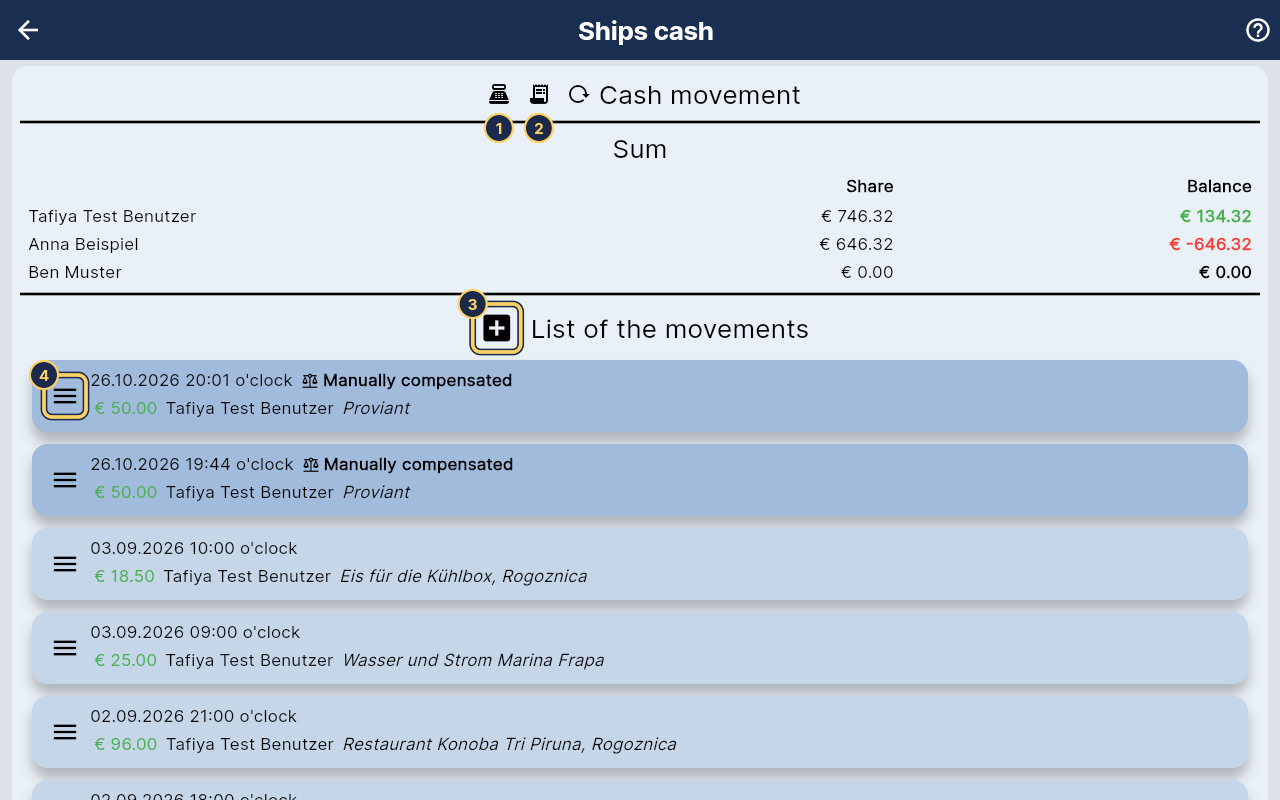
- Compensation – opens the compensation payments; as skipper you choose each crew member there and book their payments
- My final settlement – view only
- Add booking
- Booking menu – receipt, edit, delete, remove assignment
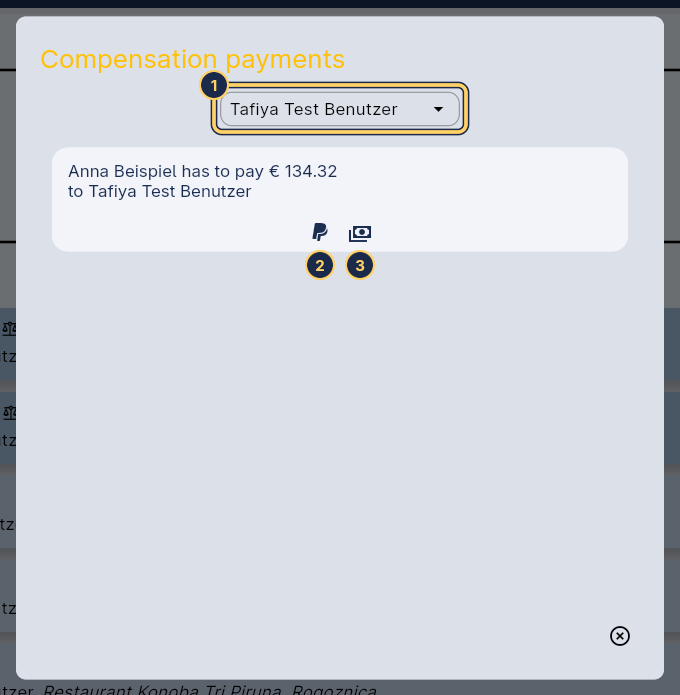
- Crew member – shows the open payments of this person (as payer or receiver)
- PayPal – book the payment and open PayPal for the transfer
- Cash – book the payment as paid in cash
If someone changes a booking during the compensation, the app discards the calculation and asks you to start the compensation again.
Split a receipt individually
Normally all crew members who take part in the ship's cash carry the same share. You can distribute individual receipts differently, for example a restaurant meal in which not everyone took part.
- In the ship's cash tap the amount of the booking.
- With the tick (1) take out people who carry nothing of this receipt. The members excluded from the ship's cash are listed here too, unticked, so that you can involve them in individual receipts.
- If needed, enter fixed shares (2). An entered amount gets a lock (3) and stays put; the rest is distributed among the others. Tap the lock to release a row again, or Reset (4) for all.
- Tap Save (5) as soon as “Left to distribute” is 0.
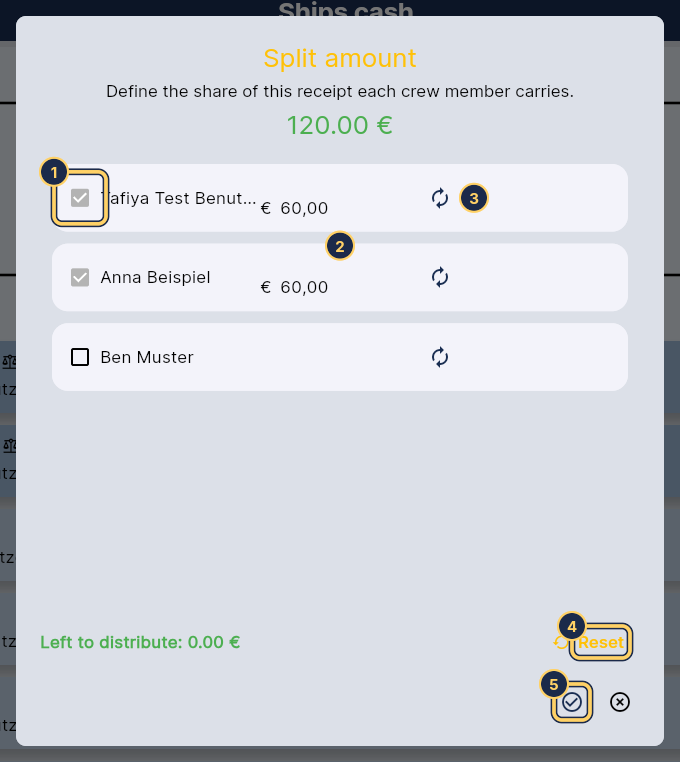
- Involved – unticked, the person carries nothing of this receipt; members excluded from the ship’s cash start unticked
- Share – enter an amount by hand; the rest is distributed automatically among the others involved
- Automatic – the share is calculated; after an input a lock appears here, tapping releases the row again
- Reset – distribute all shares evenly again
- Save – only possible when “Left to distribute” is 0
The booking is then marked as “Manually compensated”. You can open it again and correct it, or remove the assignment again via the menu of the booking. Bookings that are themselves a compensation payment or have been locked by a compensation cannot be split.
See also
- Ship's cash: record receipts, attach receipts later, personal final settlement.
- Assemble the crew: who takes part in the ship's cash (No ship cash).