Pictures
In the picture gallery you share your experiences with the whole crew. Everyone uploads their pictures, sees the pictures of the others and saves them to their own device if they wish. Pictures with position data also appear on the cruise map and can be used in the cruise diary and in the chat.
How to get there
Open the cruise and tap the Pictures tile in the cruise hub. All crew members can see the gallery.
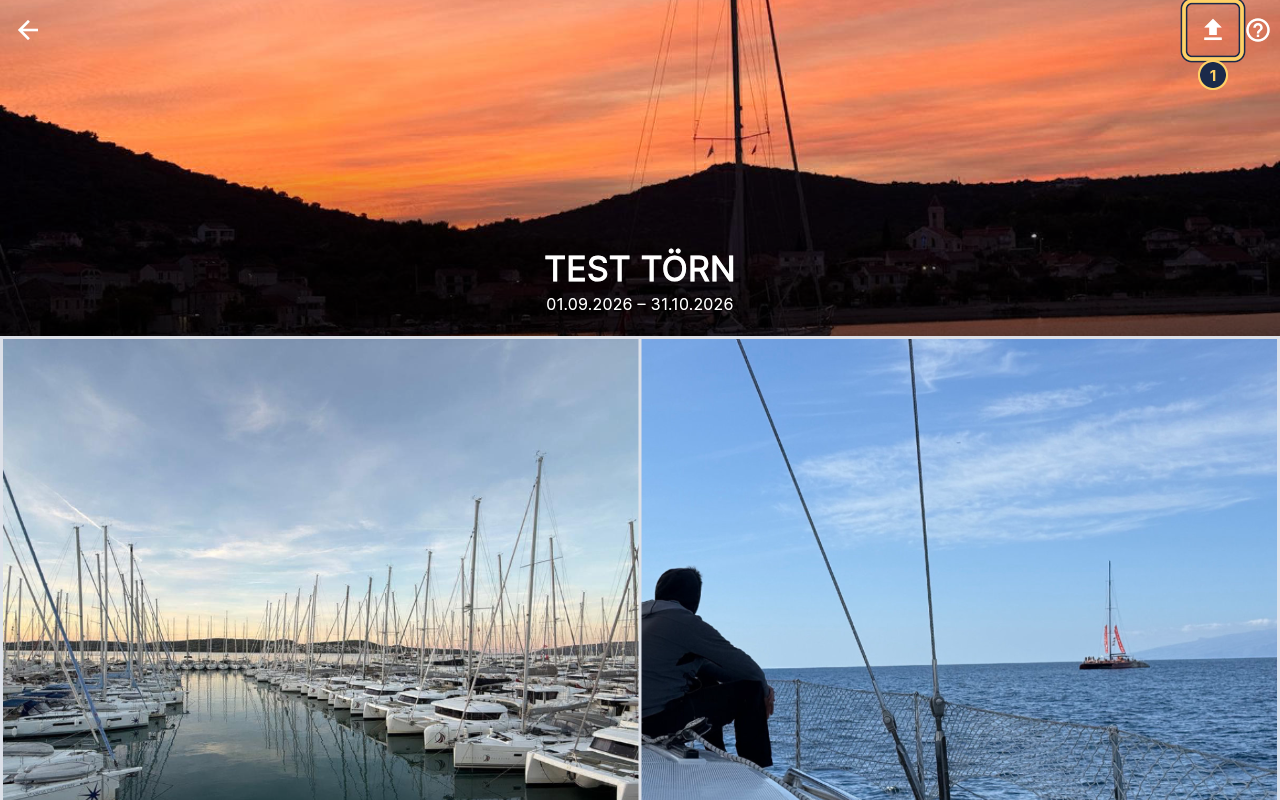
- Add pictures – upload your own pictures from the device, several at once if you like
Upload pictures
- Tap Add pictures (1) at the top right.
- Select one or more pictures on your device.
- The progress bar shows the upload. Afterwards the pictures appear in the gallery of all crew members.
Tafiya takes the date taken and the position from the picture data, as far as the camera stored them.
View pictures
- Tap a picture. It opens in full view.
- Move to the next picture with the arrows or by swiping. The bar at the bottom shows all pictures as thumbnails.
- To enlarge, tap the label Scroll mode to switch to Zoom-Mode and spread the picture with two fingers.
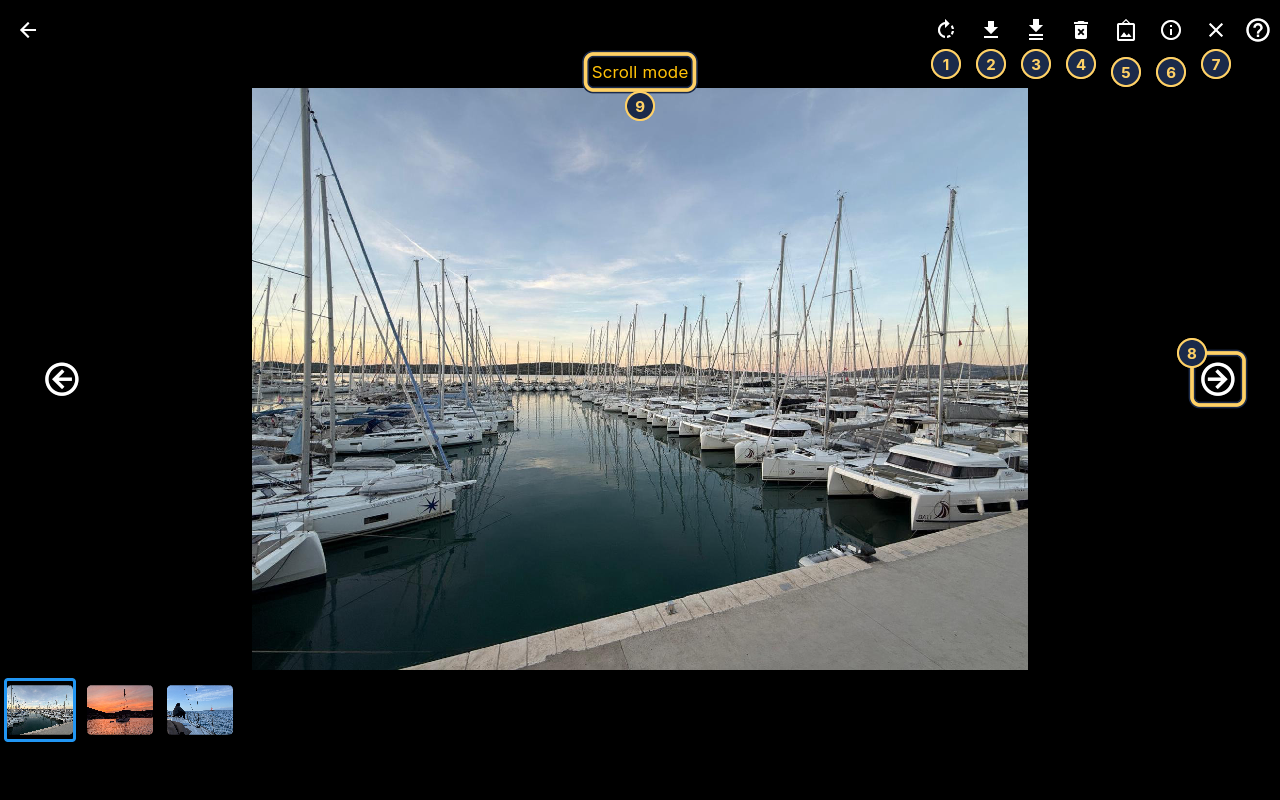
- Rotate – turn the picture by 90 degrees; the rotation is saved for everyone
- Download – save this picture to your device
- Download all – save all pictures of the other crew members in one go
- Delete – only for your own pictures, the skipper for all
- Set as cover picture – skipper only: this picture becomes the cover picture of the cruise
- EXIF information – date taken, camera and position of the picture
- Close – back to the gallery
- Next – to the next picture; on the phone you swipe
- Scroll mode / Zoom-Mode – tap to switch between browsing and zooming
With EXIF information (6) you see the date taken, the camera and the position of the picture.
Save pictures to your device
- Download (2) saves the picture shown to your device.
- Download all (3) saves all pictures uploaded by other crew members in one go.
Rotate or delete pictures
With Rotate (1) you turn a picture that lies the wrong way by 90 degrees; afterwards everyone sees the rotation. With Delete (4) you remove your own pictures from the gallery. The creator of the cruise and the co-skippers may delete all pictures.
Cover picture of the cruise
As creator of the cruise or co-skipper you can make a picture the cover picture of the cruise with Set as cover picture (5). It then appears in the cruise list and at the top of the gallery.
See also
- Cruise map: locations of the pictures on the map.
- Cruise diary: take pictures from the gallery into your entries.
- Chat: attach pictures from the gallery to messages.