Anchor watch
So that you can sleep soundly at anchor, Tafiya monitors the position of the ship. If it drifts out of the swing circle or into an alarm zone you have drawn, the app raises the alarm. On the phone the anchor watch keeps running in the background too.
How to get there
Open the cruise, tap Navigation in the cruise hub and then the anchor symbol in the header (14 on the navigation chart). The anchor watch needs GPS and is therefore available on the phone. Whoever may open the navigation can set it: the creator of the cruise and the co-skippers.
Set the anchor watch
The anchor watch takes your current GPS position as the anchor position.
- Tap the anchor symbol in the navigation header as soon as the anchor holds.
- Set the radius (1) of the swing circle in metres, to the metre in the field or with the slider (2).
- Tap Set (3).
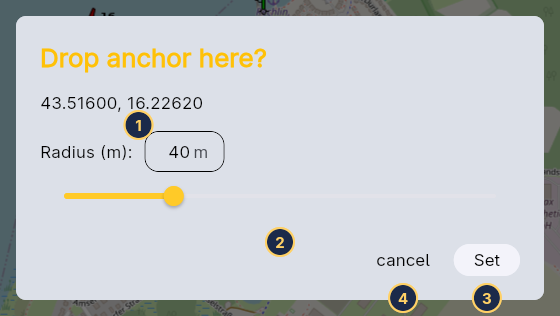
- Radius – swing circle in metres, type it in to the metre
- Slider – radius in steps of 1 m
- Set – start the anchor watch at the current GPS position
- Cancel – no anchor watch
The swing circle appears on the chart around the anchor position. If it is not quite in the right place, press and hold it and move it by hand. The anchor symbol in the header lights up as long as the watch is running.
Running anchor watch
A tap on the lit anchor symbol (1) opens the overview of the running watch.
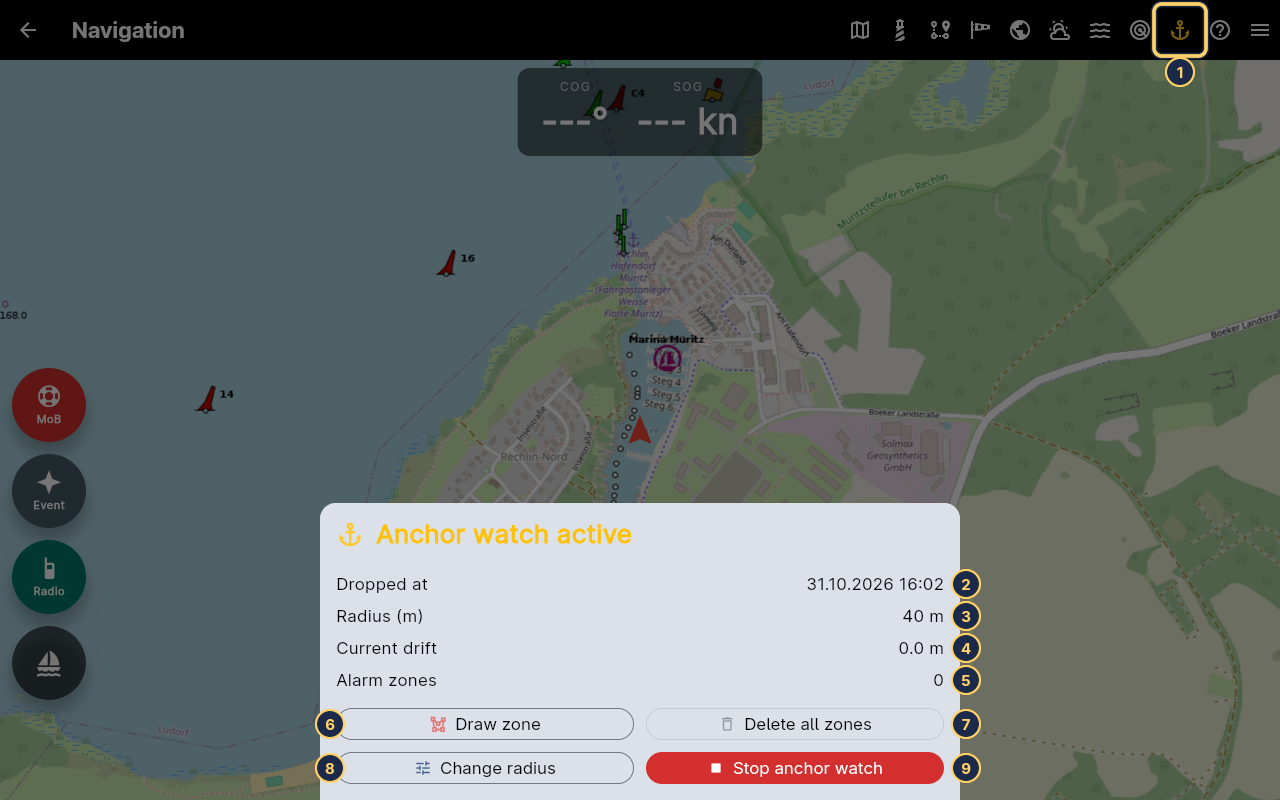
- Anchor watch – lit as long as the watch is running; tap to open this overview
- Dropped at – start of the watch
- Radius of the swing circle
- Current drift – distance of the ship from the anchor position
- Alarm zones – number of drawn zones
- Draw zone – trace an alarm zone on the chart
- Delete all zones – back to the swing circle
- Change radius – without restarting the watch
- Stop anchor watch – after a confirmation; the swinging is saved as an anchor track
- Change radius (8) adjusts the swing circle without restarting the watch.
- Stop anchor watch (9) stops the monitoring after a confirmation. Tafiya stores the recorded swinging as an anchor track among the routes of the cruise and writes a note into the logbook.
Alarm
If the ship drifts out of the swing circle (or into an alarm zone), the alarm sounds and the phone shows a notification. This also works when you have left the navigation chart.
- End the alarm sound with Stop alarm. The anchor watch keeps running.
- Check the situation and set the watch again if you have re-laid the anchor.
If the GPS signal is lost for a longer time, the app warns you as well.
Alarm zones
Instead of the swing circle you can mark areas on the chart that the ship must not drift into, such as a coast, a reef or the neighbouring boats. As soon as at least one zone exists, only it triggers the alarm. The swing circle is then only displayed.
- Open the overview of the running watch and tap Draw zone (6).
- Trace the zone with your finger on the chart.
- Tap Save zone. With Redraw you start again.
- Repeat this for further zones. The number is shown in the overview under Alarm zones (5).
With Delete all zones (7) you return to the swing circle. The zones belong to the running watch and end with it.
See also
- Navigation: the chart from which you set the anchor watch.
- Routes and recording: where the anchor track ends up.
- Logbook: note on the ended anchor watch.