Manage packing list
With a packing list nobody forgets anything. As skipper you create the packing list of the cruise, from your catalog or via AI, and add notes to items. Each crew member ticks off in their personal packing list what they have packed.
How to get there
Open the cruise and tap the Manage packing list tile in the Skipper section of the cruise hub. The creator of the cruise and the co-skippers see the tile.
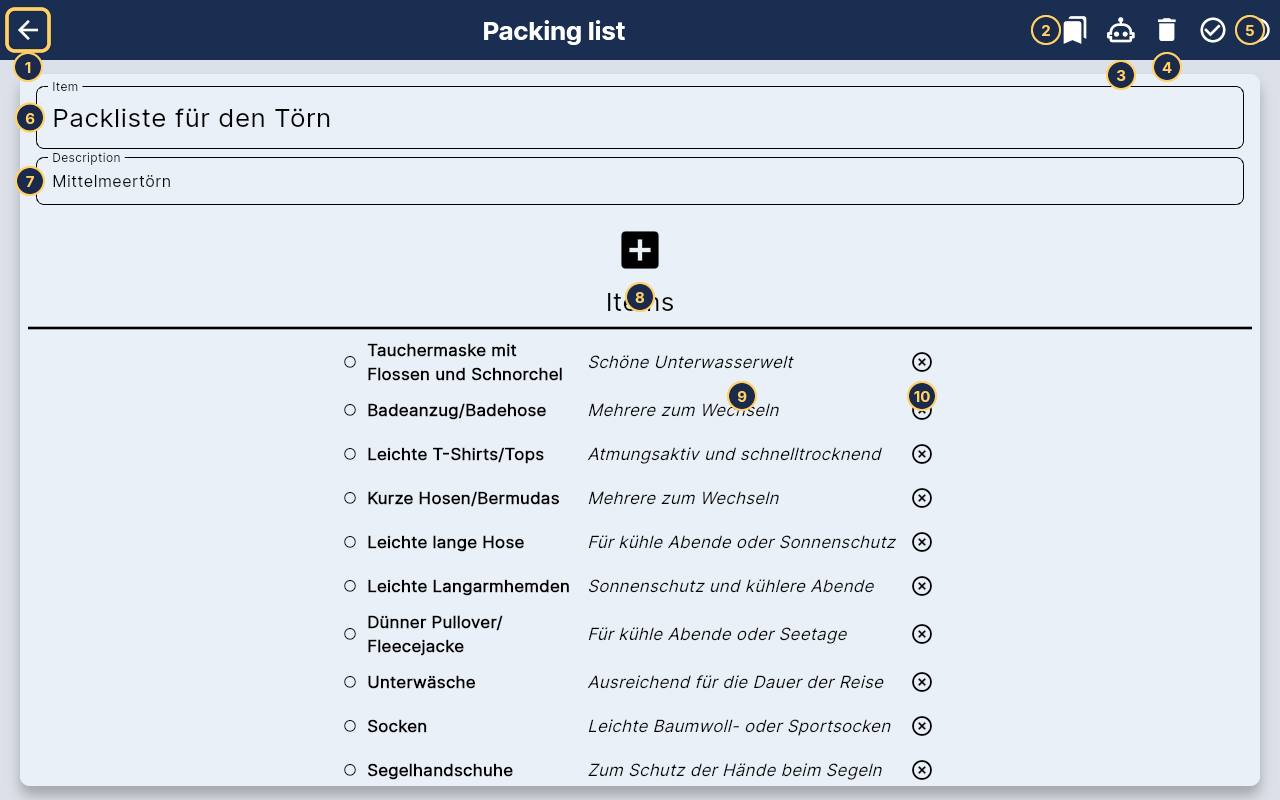
- Back – saves the packing list
- Assign catalog – take over a packing list from the master data or a shared list; an existing cruise packing list is replaced
- AI packing list – have the AI suggest items, they are appended to the list
- Delete packing list – the personal lists of the crew are kept
- Save
- Name of the packing list
- Description – what the list is meant for
- Add item – enter the name, you add the note in the row afterwards
- Note – a long press changes name and note directly in the row
- Remove item
Create a packing list
- Give the list a name (6) and a description (7).
- Tap Add item (8) and enter the name.
- With a long press on the row enter a note (9), for example “Several to change”.
- Tap Save (5) or Back (1); both save.
With Remove item (10) you take a row out, with Delete packing list (4) the whole list. The personal lists of the crew are kept.
Load a packing list from the catalog
If you have created a packing list catalog under Master data and templates, you take it over with one tap.
- Tap Assign catalog (2).
- Choose one of your catalog lists or a list that another user has shared.
- If there is already a packing list for the cruise, the app asks whether it should be replaced.
Create a packing list via AI
The AI suggests items matching region, duration and special conditions. For this an AI model must be set up.
- Tap AI packing list (3).
- Check Region (1) and Days (2), both prefilled from the cruise.
- Name special conditions (3), for example diving, kids aboard or cold weather.
- Tap Generate (4). The items are appended to your list; check them and save.
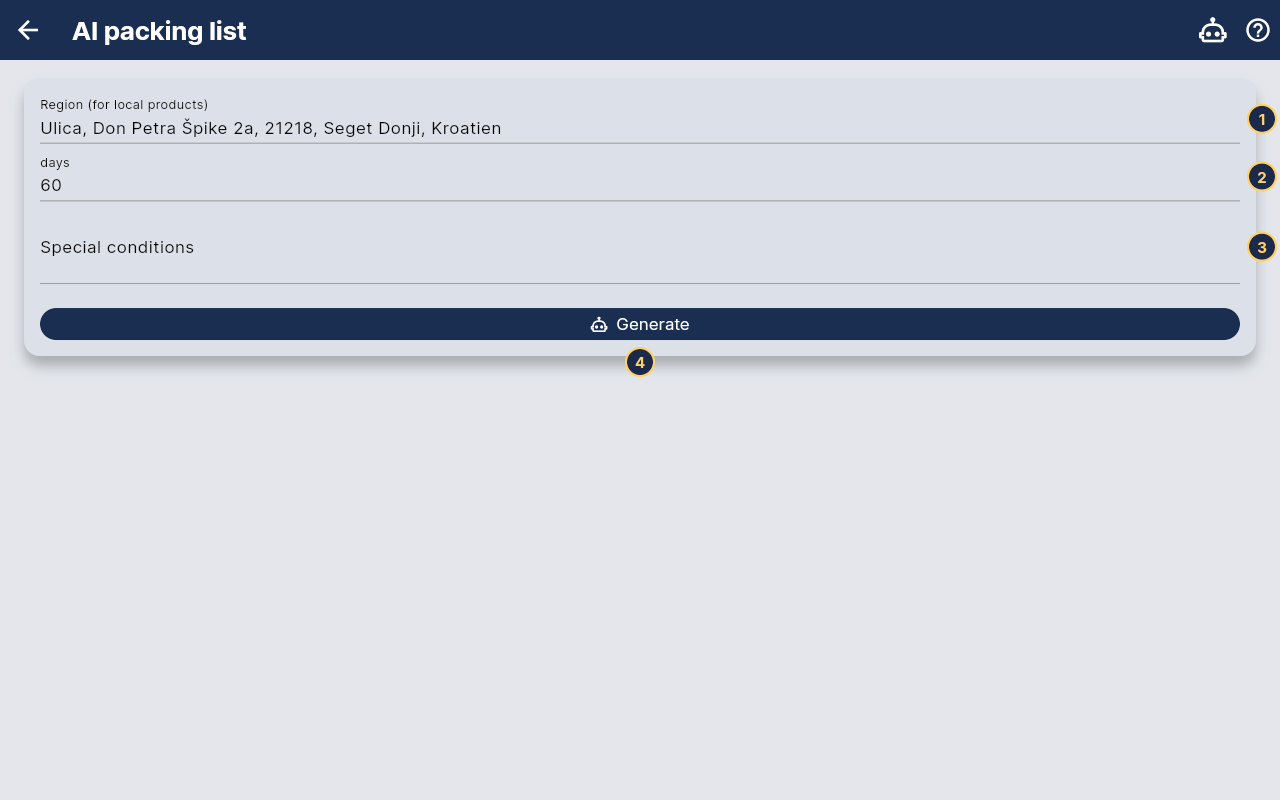
- Region – prefilled from the cruise, determines climate and equipment
- Days – prefilled from the cruise
- Special conditions – e.g. diving, kids aboard, cold weather
- Generate – the items are appended to the packing list
See also
- Packing list: the personal packing list of each crew member.
- Master data and templates: create a packing list catalog.