Who cooks when
With the cooking plan you as skipper decide who cooks what and when. You get recipes from your catalog, from the recipes shared by other Tafiya users, or have the AI suggest them. You take the ingredients of all recipes over into a shopping list with one tap. The crew sees the plan under Who cooks when.
How to get there
Open the cruise and tap the Provisioning tile in the Skipper section of the cruise hub. The cooking plan is the lower card Who cooks when. The creator of the cruise and the co-skippers see the provisioning.
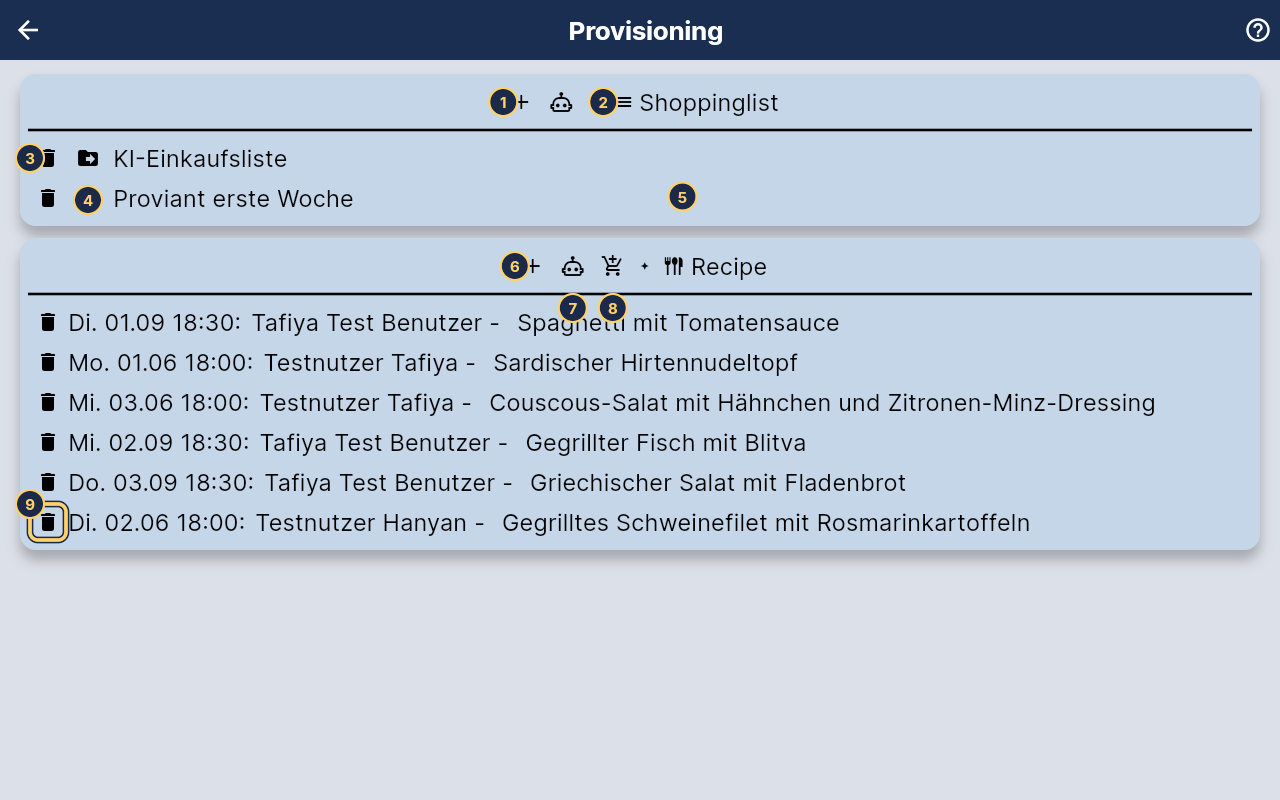
- Create shopping list – enter a name, then the list opens
- AI shopping list – have the AI create a complete list for the cruise
- Delete list
- Move list – take all items over into another list, the list itself is removed
- Name of the list – tap to open the list, long press to rename it
- Create cooking plan entry – who cooks what and when
- AI recipe suggestions – have recipes suggested to match region and crew
- Shopping list from recipes – take all ingredients not yet booked over into a shopping list; appears only when there are such ingredients
- Delete entry
Create a cooking plan entry
- In the Who cooks when card tap Create cooking plan entry (6).
- With Who is cooking? (1) choose the cook from the crew and with When (2) date and time.
- Enter the dish (4) or load a recipe from the catalog with What (3). The crew sees the instructions (5) in the cooking plan.
- Tap Save (6). The recipe opens for the ingredients.
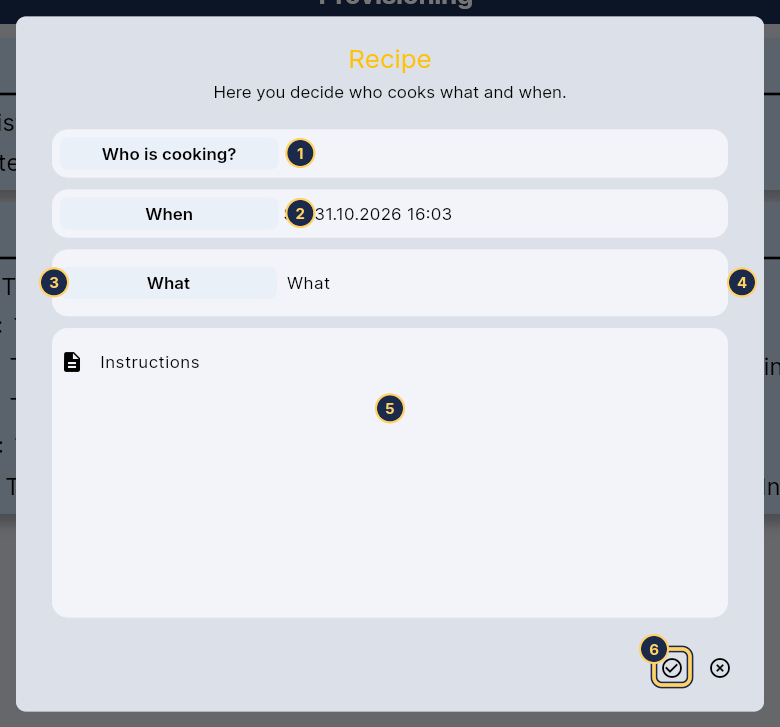
- Who is cooking? – choose the cook from the crew
- When – date and time of the meal
- What (button) – load a recipe from the catalog, also from the recipes shared by other users
- What (field) – enter the name of the dish by hand
- Instructions – preparation, visible to the crew
- Save – then the recipe opens for the ingredients
Record ingredients and go shopping
In the recipe you record the ingredients like items of a shopping list. When loading from the catalog, the amounts are already scaled up to the crew size.
- Tap Add ingredient (5) and enter category, name, amount and unit.
- With Multiply amounts (7) you convert all amounts by a factor, for example when guests join.
- Tap Book on shopping list (6) and choose an existing or new shopping list. Booked ingredients appear dimmed with a shopping trolley and cannot be booked twice.
- With Back (1) the recipe is saved. If some ingredients are not booked yet, the app asks whether you want to do that now.
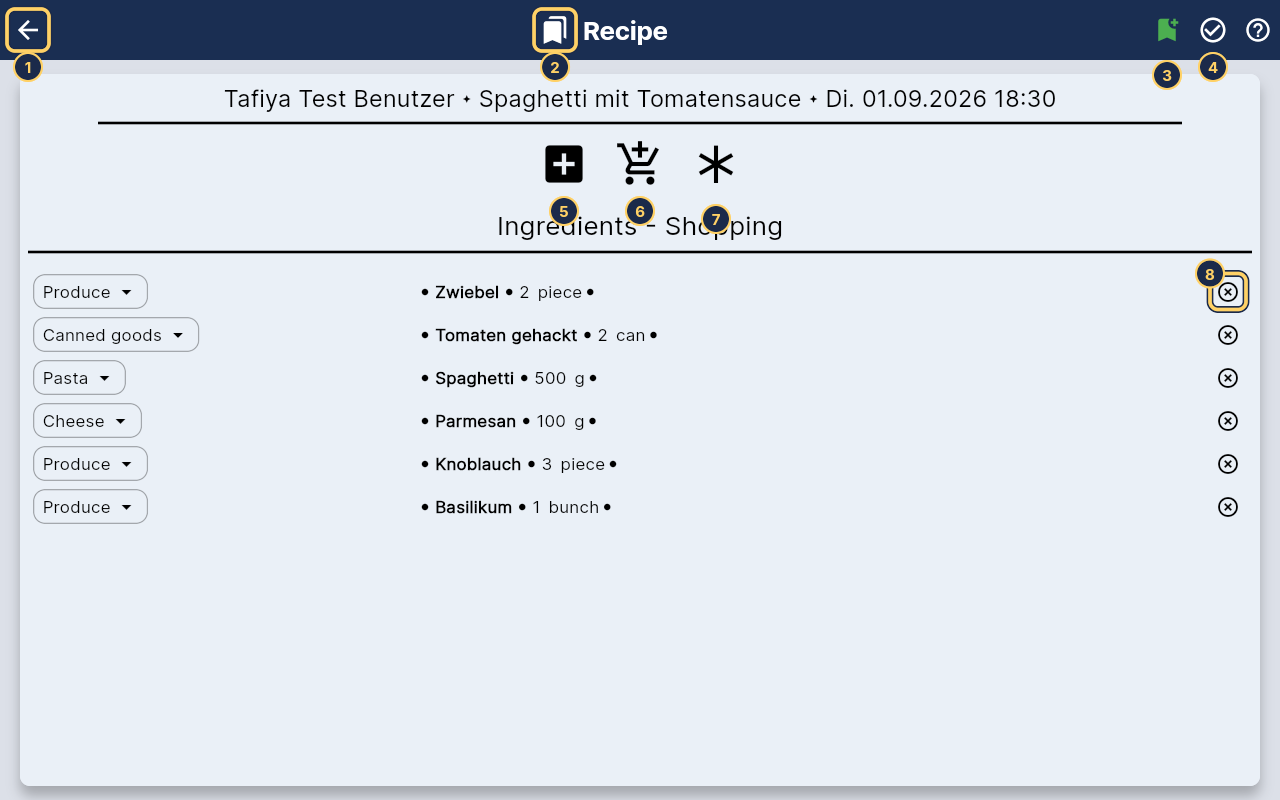
- Back – saves; if ingredients are not on a shopping list yet, the app asks whether to book them now
- Load from catalog – take over the ingredients of a catalog recipe
- Save to catalog – store the recipe as a template (amounts normalised to one person)
- Save
- Add ingredient – the same dialog as for the shopping lists
- Book on shopping list – take all ingredients over into an existing or new shopping list
- Multiply amounts – convert all amounts by a factor
- Remove ingredient
With Shopping list from recipes (8) in the provisioning you book the open ingredients of all recipes at once. Identical ingredients are combined. With Save to catalog (3) you store a recipe as a template in the master data, normalised to one person.
Have the AI suggest recipes
The AI suggests recipes matching region, crew and wishes and so also introduces you to local dishes. For this an AI model must be set up.
- In the provisioning tap AI recipe suggestions (7).
- Check Days (1, prefilled from the cruise, changeable), Number of recipes (2) and Start region (3).
- Enter the number of vegetarians (4) and vegans (5), foods to exclude (6) and wishes (7).
- Tap Generate (8). From the suggestions pick the recipes that should go into the cooking plan; cook and date you set afterwards per entry.
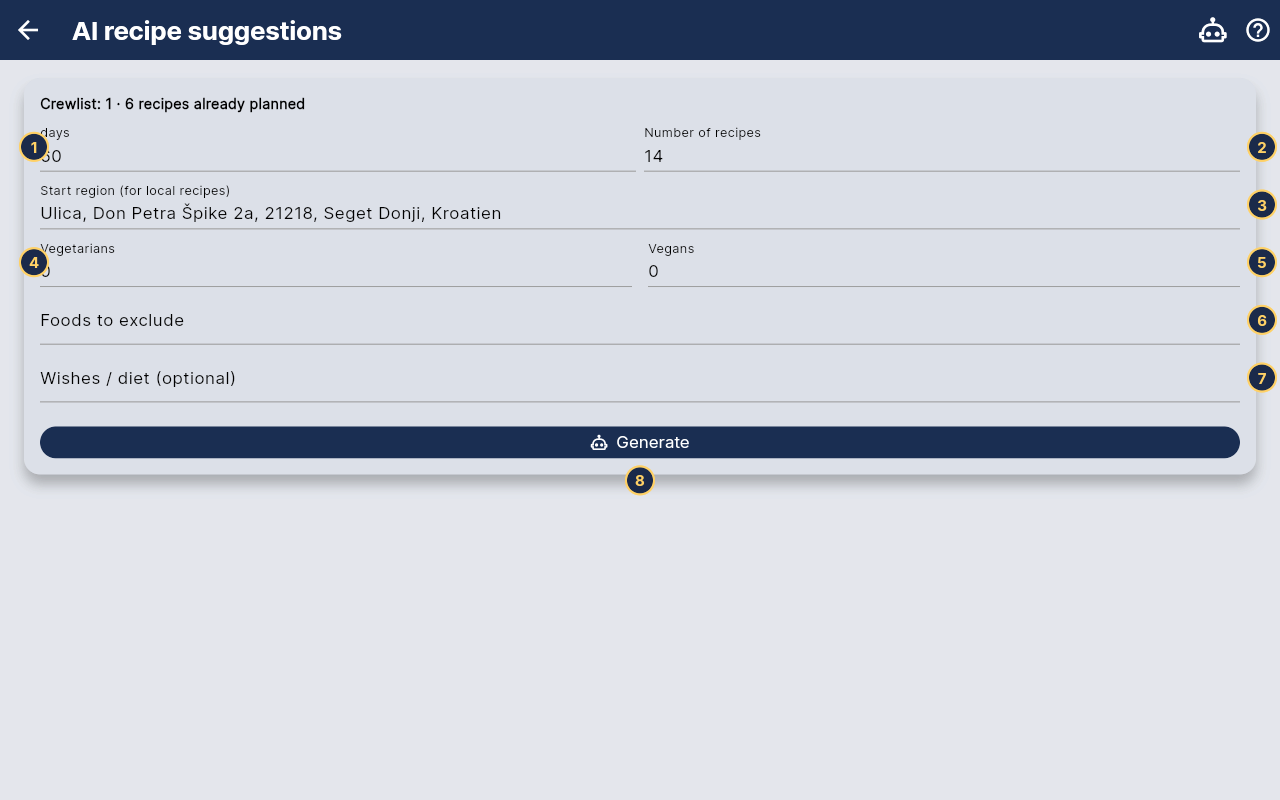
- Days – prefilled from the cruise
- Number of recipes
- Start region – for local dishes
- Vegetarians – number
- Vegans – number
- Foods to exclude – allergies and dislikes
- Wishes / diet – free text
- Generate – the suggestions open for selection
See also
- Who cooks when: the cooking plan from the crew's point of view.
- Shopping lists: create and edit lists, create them via AI.
- Master data and templates: recipe catalog.