Shopping lists
With provisioning you as skipper put together the shopping lists for the cruise: by hand, from your catalog or automatically via AI. The crew sees the lists in their shopping list, takes over categories and ticks off while shopping.
How to get there
Open the cruise and tap the Provisioning tile in the Skipper section of the cruise hub. The upper card contains the shopping lists, the lower one the cooking plan, see Who cooks when. The creator of the cruise and the co-skippers see the provisioning.
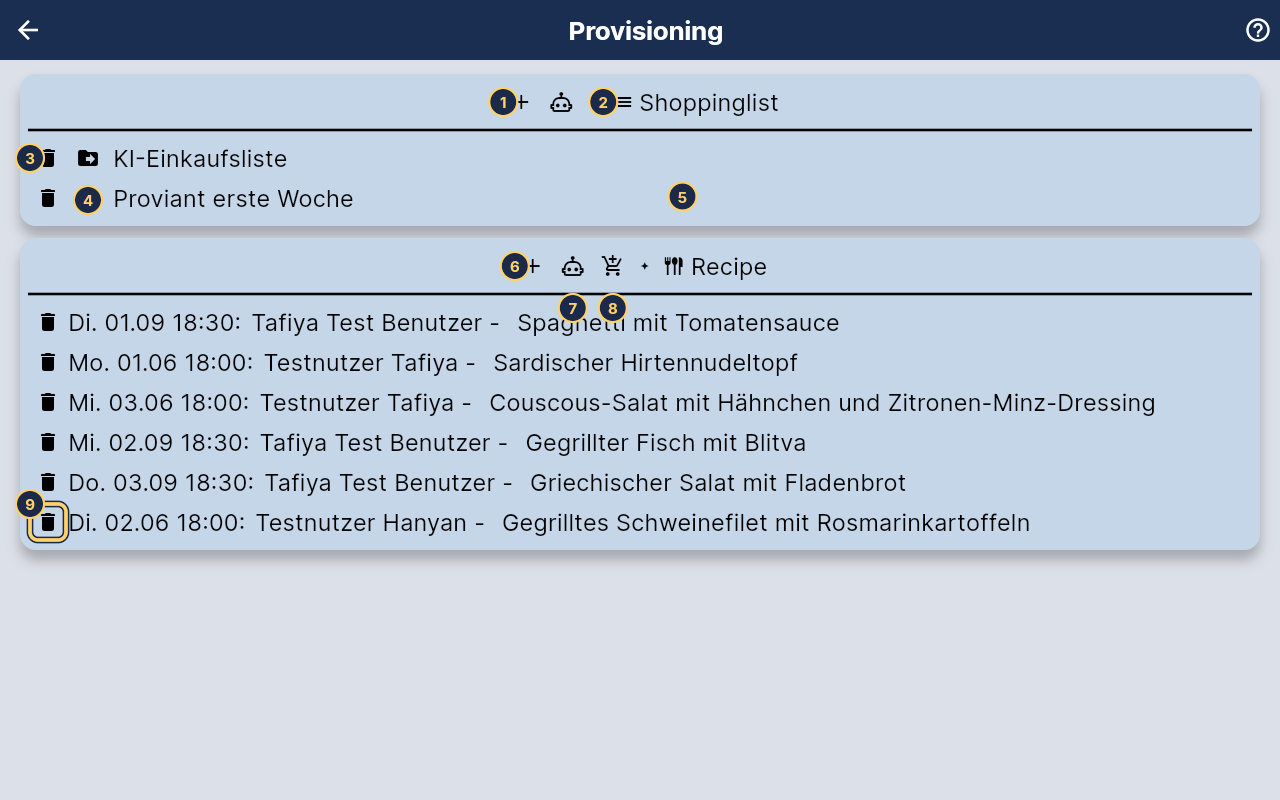
- Create shopping list – enter a name, then the list opens
- AI shopping list – have the AI create a complete list for the cruise
- Delete list
- Move list – take all items over into another list, the list itself is removed
- Name of the list – tap to open the list, long press to rename it
- Create cooking plan entry – who cooks what and when
- AI recipe suggestions – have recipes suggested to match region and crew
- Shopping list from recipes – take all ingredients not yet booked over into a shopping list; appears only when there are such ingredients
- Delete entry
Create and fill a shopping list
A cruise can have several lists, for example one per shopping trip or per week.
- Tap Create shopping list (1) and give the list a name. The list opens.
- Tap Add item (6) and enter category (1), name (2), amount (3) and unit (4). With Enter you apply the item and can enter the next one right away.
- Or load a list from the catalog (2). The amounts from the catalog are normalised to one person and are multiplied by the crew size.
- Tap Back (1); the list is saved.
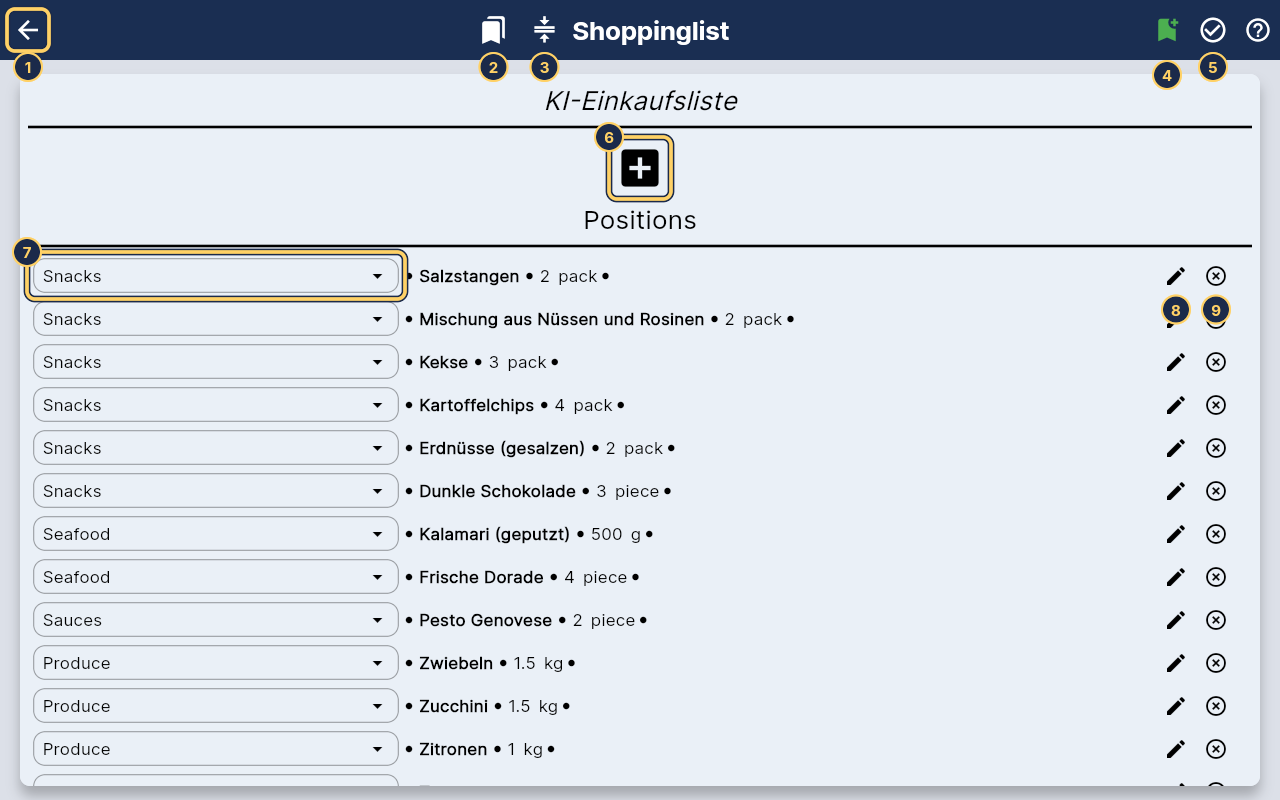
- Back – saves the list and closes it
- Load from catalog – take over a list from the master data, amounts are scaled up to the crew size
- Combine – add identical items (also g/kg and ml/l) into one row
- Save to catalog – store the list as a template in the master data (normalised to one person)
- Save without leaving the list
- Add item – opens the “Positions” dialog
- Category of the item, change it directly here
- Edit – change name, amount, unit and category in the dialog; name and amount can also be changed directly in the row with a long press
- Remove item
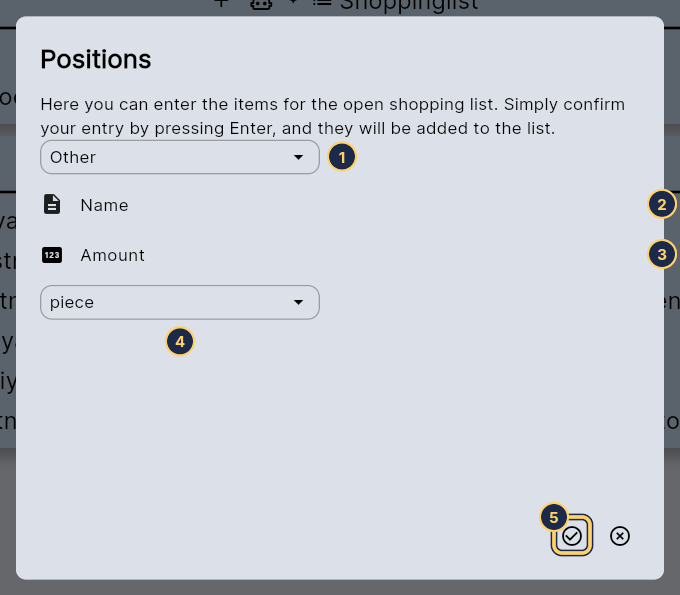
- Category – the list is grouped by it
- Name – Enter applies the item to the list, the dialog stays open for the next one
- Amount – empty means “without amount”
- Unit – standard units; your own units from the master data are listed below them
- Apply
Your own units, such as “pallet” or “x 0.5 l cans”, you create under Master data and templates. They then appear in the unit selection.
Edit a list
You change each item directly in the list:
- Category (7) via the selection at the start of the row.
- Name and amount with a long press on the value, or via Edit (8) everything at once in the dialog.
- Combine (3) adds duplicate items into one row, even if they were entered in g and kg or ml and l.
- Save to catalog (4) stores the list as a template in the master data, normalised to one person.
You change the name of a list in the provisioning with a long press on the name (5). Move list (4) takes all items over into another list of the cruise and deletes the source. Delete (3) removes the list with all items.
Create a shopping list via AI
The AI creates a complete list with food, drinks and snacks for the cruise. For this an AI model must be set up.
- In the provisioning tap AI shopping list (2).
- Check List name (1), Days (2, prefilled from the cruise, changeable) and Region (3, for local products).
- Enter the number of non-drinkers (4), vegetarians (5) and vegans (6). The app shows the crew size at the top.
- Switch on Without main meal (7) if you eat ashore in the evening.
- Tap Generate (8). The finished list opens for checking; save it like any other list.
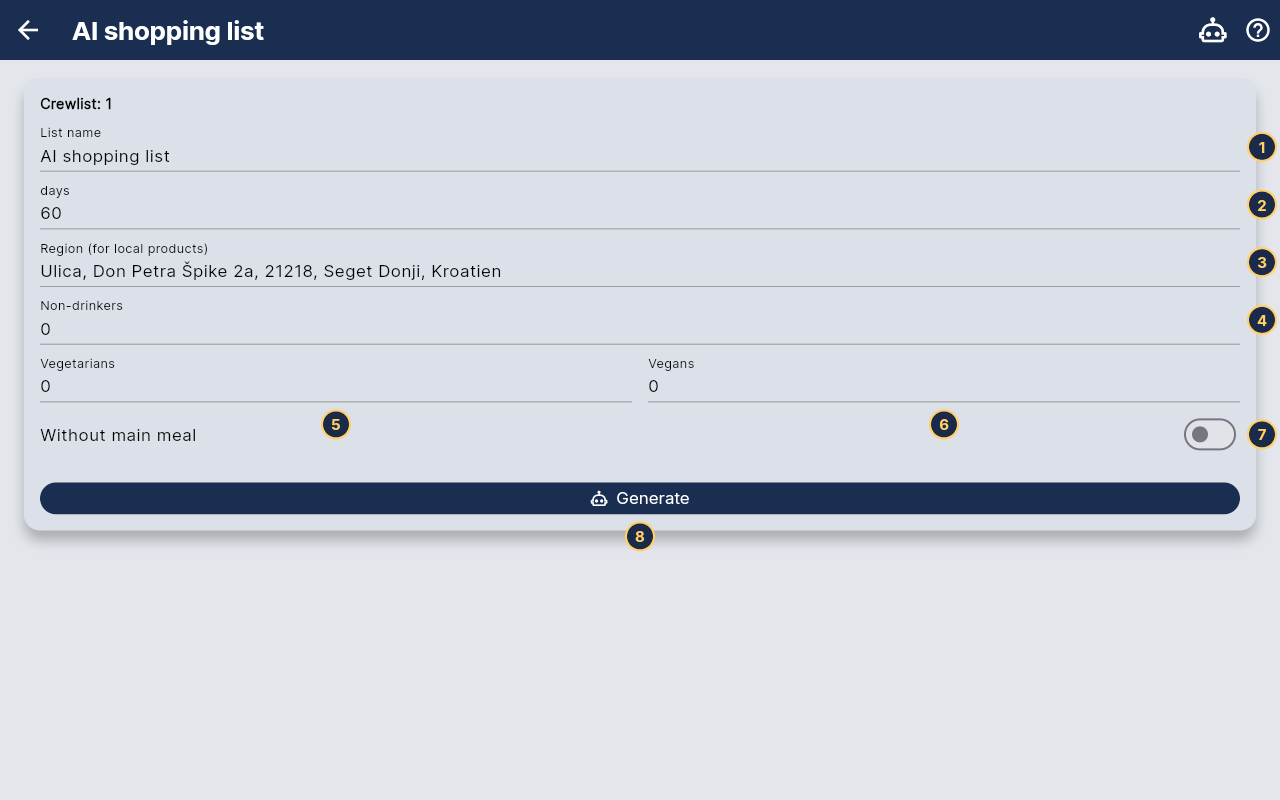
- List name of the new shopping list
- Days – prefilled from the cruise, e.g. shorten to the first week
- Region – prefilled with the start harbour, for local products
- Non-drinkers – number, affects the drinks
- Vegetarians – number
- Vegans – number
- Without main meal – only breakfast, snacks and drinks if you eat out in the evening
- Generate – the finished list opens for checking and saving
See also
- Shopping list: assign categories to crew members and go shopping.
- Who cooks when: take the ingredients of the recipes over into a shopping list.
- Master data and templates: catalog lists and your own units.
- AI model: model and key for the AI functions.