Sailing career
In the sailing career you manage your certificates and licences with a photo or scan and have a mile book created as a PDF covering all saved cruises.
How to get there
On the home screen tap Settings at the bottom and, in the Sailing career card, tap Open sailing career. Every user has a sailing career, skipper and crew alike.
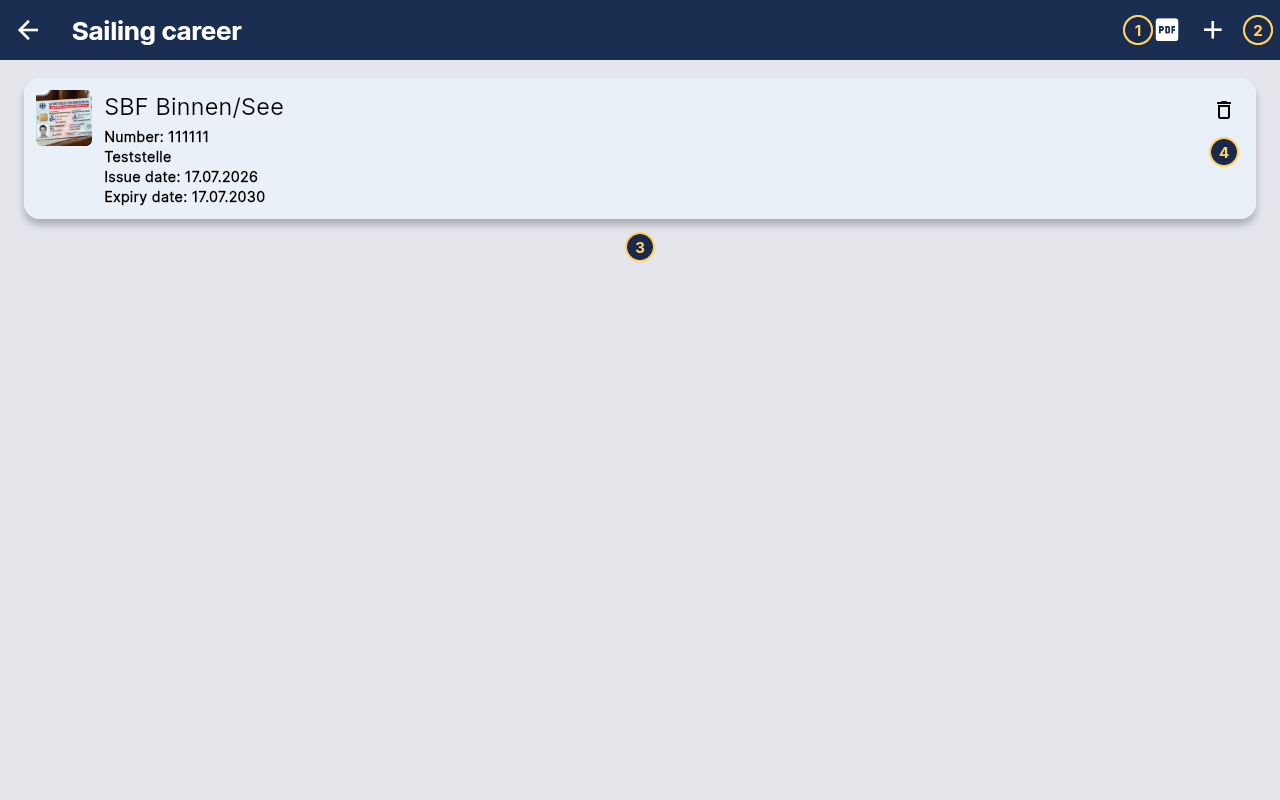
- Create mile book – PDF covering all saved cruises
- Add certificate
- Certificate – tap to open it for editing
- Delete – with confirmation
Add a certificate
- Tap Add certificate (2) at the top right.
- Enter Name (2), Number (3) and Issuing authority (4).
- Choose the issue date (5) and, if needed, the expiry date (6). The cross next to the date clears it again.
- Tap Add photo/scan (8) and choose a picture of the certificate. The cross on the picture (7) removes it again.
- Tap Save (1).
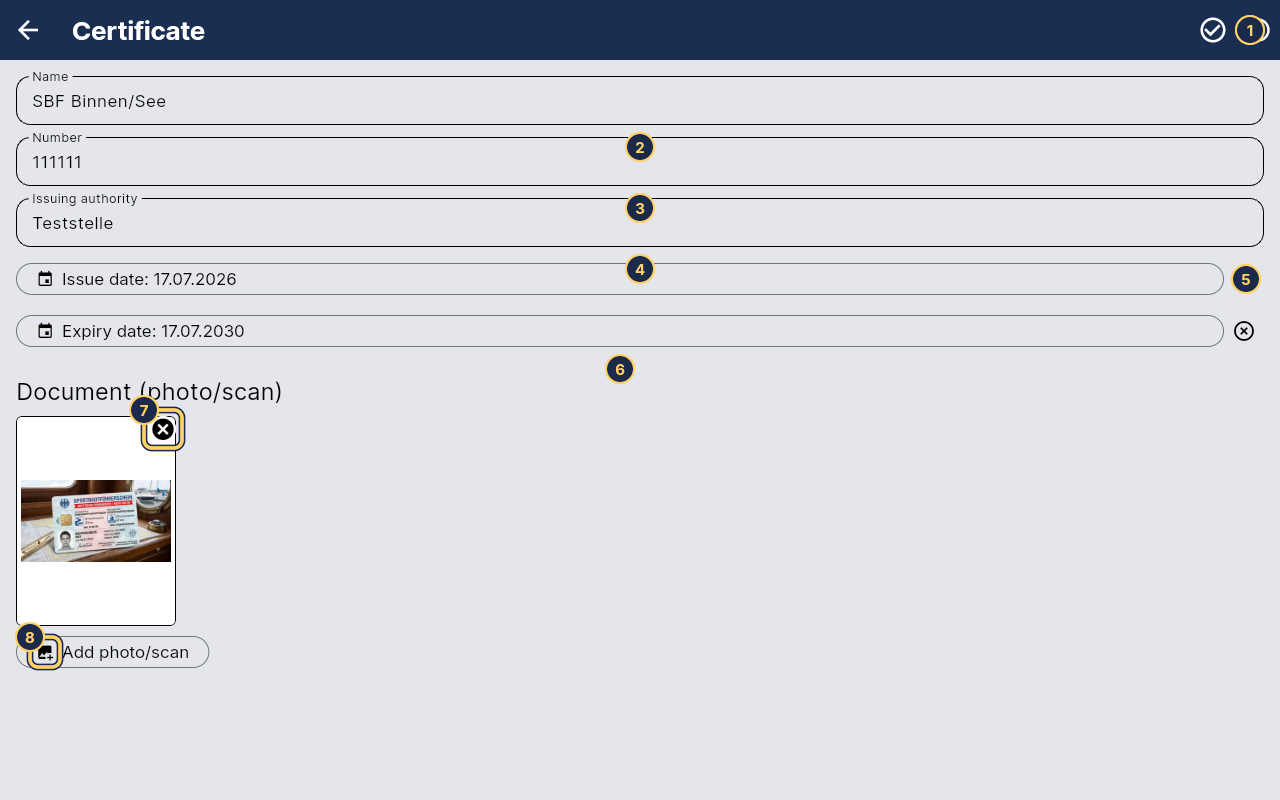
- Save – closes the certificate
- Name – e.g. SBF See, SKS, SRC
- Number of the certificate
- Issuing authority
- Issue date – opens the calendar
- Expiry date – optional, the cross next to it clears a date again
- Remove document
- Add photo/scan – choose a picture of the certificate
Tapping a certificate in the list (3) opens it again for editing, Delete (4) removes it after confirmation.
Create a mile book
The mile book summarises all cruises you took part in: period, ship, sailing area, role and nautical miles. If the skipper of a cruise has stored their signature in the user settings, it appears next to that cruise.
- Tap Create mile book (1) at the top right.
- The app loads your cruises and generates the PDF. It opens for viewing and sharing.
See also
- Mileage confirmation: the confirmation per cruise for the crew.
- User: store your signature.