Logbook
In the logbook you as skipper keep one entry per day with name, description, events, radio calls, navigation data, crew and technics. Events and radio calls from the navigation land automatically in the entry of the day, and from the recorded routes Tafiya calculates distance, speed and time under way. The whole logbook is available as a PDF.
How to get there
Open the cruise and tap the Logbook tile in the Skipper area of the cruise hub. The creator of the cruise and the co-skippers keep the logbook.
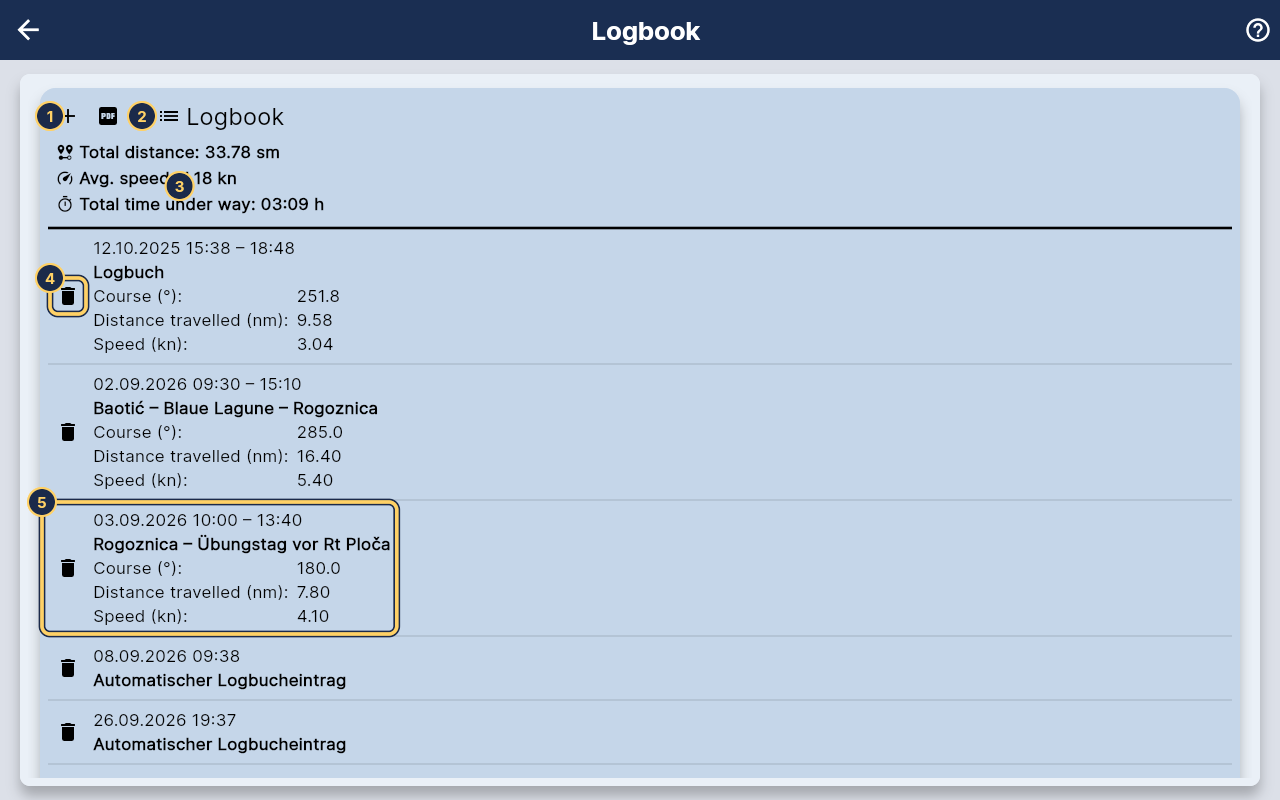
- New entry – creates the entry for today; if it already exists, the app asks for the day
- PDF – the whole logbook as a PDF
- Totals – distance, average speed and time under way of the whole cruise
- Delete entry – after a confirmation
- Entry – date, times, name and navigation values; tap to open it
At the top are the totals of the cruise (3): total distance, average speed and the total time under way from all routes.
Create an entry
There is at most one entry per day.
- Tap New entry (1). If there is already an entry for today, the app asks for the day of the new entry.
- Fill in the entry and leave it with the back arrow. This saves it.
You open an existing entry with a tap on its row (5); the bin (4) deletes it after a confirmation.
Edit an entry
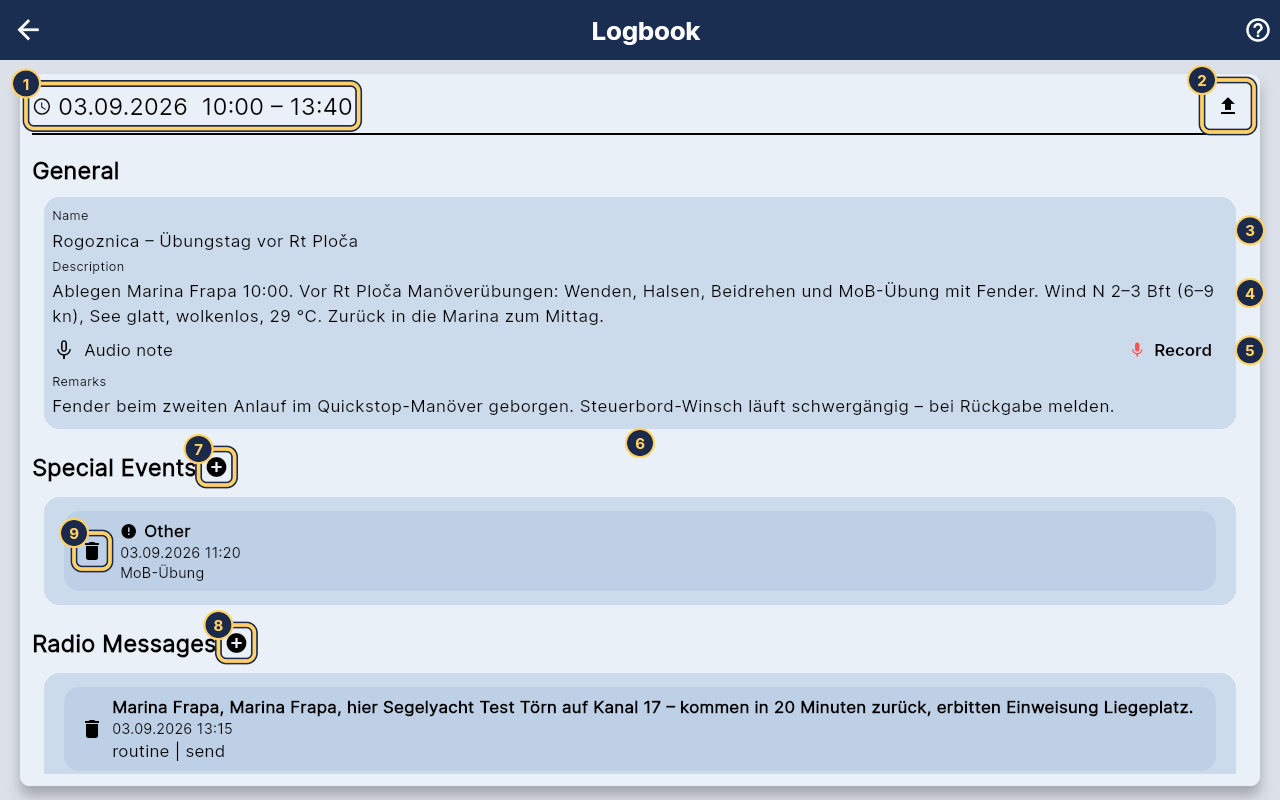
- Date and times – tap: choose the day, then start and end time of the day’s passage
- Upload pictures – pictures for the entry, separate from the picture gallery
- Name of the day
- Description – course of the day
- Record – speak an audio note
- Remarks
- Add event – opens the “Special Events” dialog
- Add radio call – opens the “Radio Message” dialog
- Delete event – a tap on the event itself opens it for editing
- Tap Date and times (1) to set the day and then the start and end time of the day's passage. Without your own input the times come from the routes of the day. When you change the date, the app checks whether the day is still free.
- Under General enter Name (3), Description (4) and Remarks (6).
- With Record (5) you speak an audio note. It can be played back in the entry and deleted again.
- With Upload pictures (2) you attach pictures to the entry, separate from the picture gallery of the cruise.
If there are routes for the day, Fetch weather data loads the historical weather data along the route. It appears as cloud symbols on the logbook chart.
Navigation, crew and technics
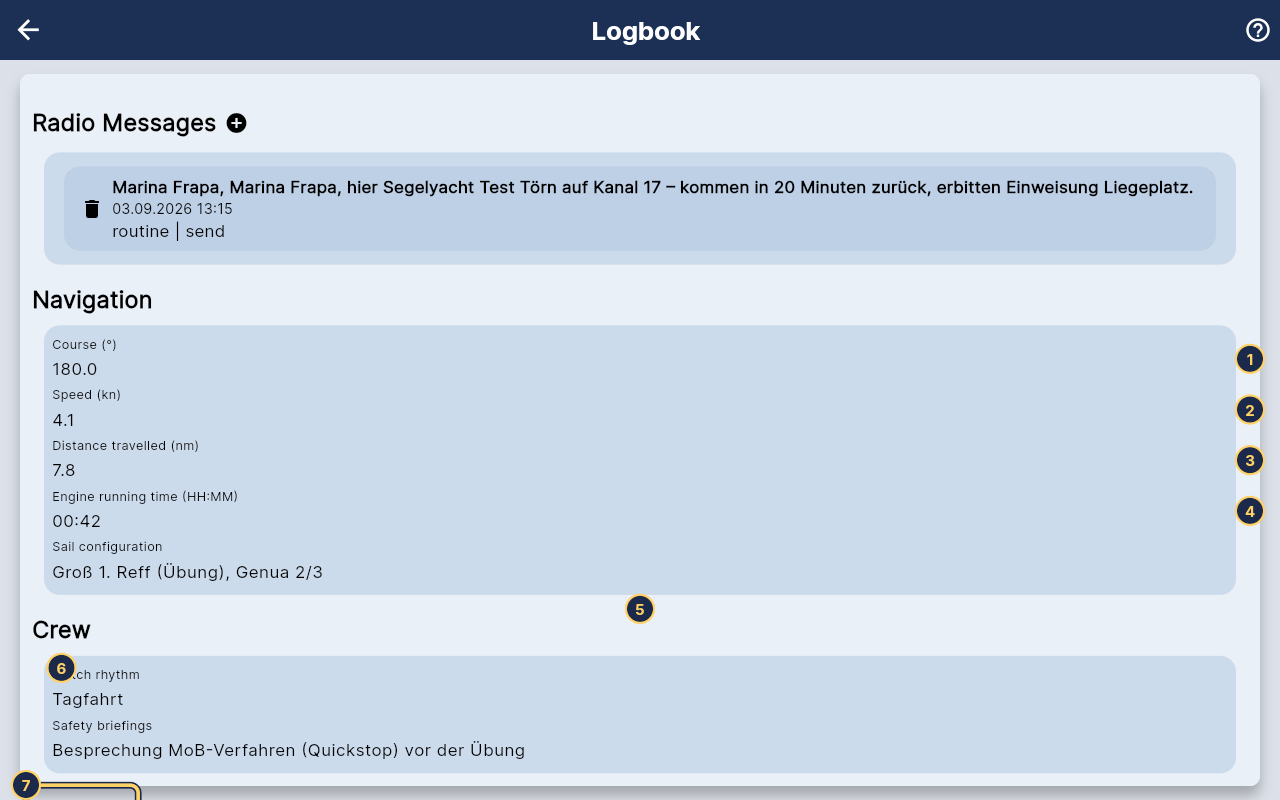
- Course – from the routes of the day, otherwise by hand
- Speed – average from the routes
- Distance travelled – calculated, can be overwritten by hand
- Engine running time in hours:minutes; taken over automatically from the navigation
- Sail configuration
- Crew – watch rhythm and safety briefings
- Technics – fuel, battery, engine and generator hours, checks, maintenance
- Course, Speed and Distance travelled are calculated by Tafiya from the routes of the day. You can overwrite the distance by hand; with Calculate distance from route again automatically you return to the calculated value. Without routes you enter the values yourself.
- The Time under way is the sum of the routes of the day.
- You enter the Engine running time in hours:minutes. If you switch between sailing and engine in the navigation, the app enters it itself.
- In addition there are sail configuration, watch rhythm, safety briefings, fuel, battery, engine and generator hours, checks and maintenance.
Events
You record special events under way in the navigation with a tap, or add them here afterwards.
- Tap Plus (7) next to Special Events.
- Choose the Type (1): man overboard, other or one of your own event types from Master data and templates.
- Set Date and time (2), enter Title (3) and Description (4).
- Attach pictures to the event with the camera (5).
- Take the position from GPS (6) or pick it on the chart (7).
- Save with the tick (8).
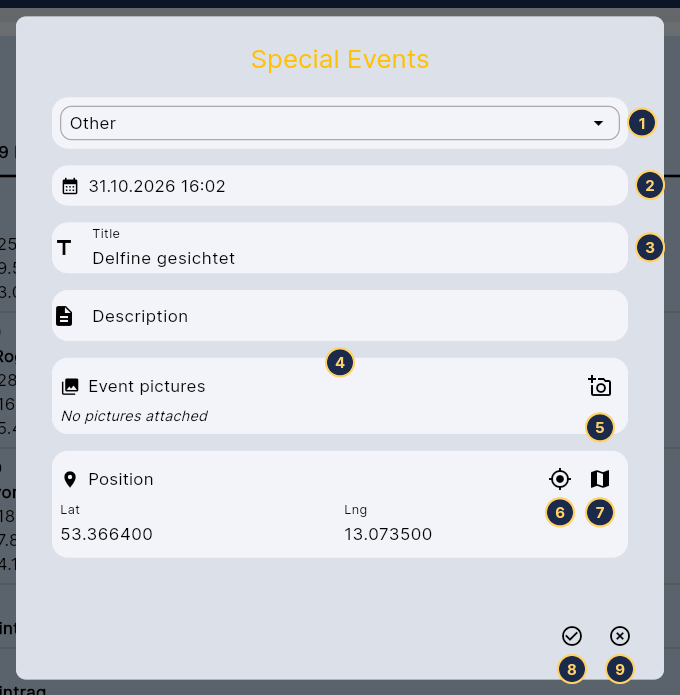
- Type – man overboard, other or one of your own event types
- Date and time of the event
- Title – prefilled for your own event types
- Description
- Add pictures to the event
- Current position – take it from GPS
- Position on the chart – pick it on the chart
- Save
- Cancel
A tap on an event opens it for editing; the bin next to it deletes it. On the logbook chart you move an event with a long press, on the desktop with the mouse. If you drop it near the route, the app asks whether it should be placed on the route; it then takes position and time from the recording.
Radio calls
- Tap Plus (8) next to Radio Messages.
- Choose Category (1), Type (2) and Direction (3) of the radio call.
- Set the Time (4) in UTC and enter the Wording (5).
- Take the position from GPS (6) or from the chart (7) and save with the tick (8).
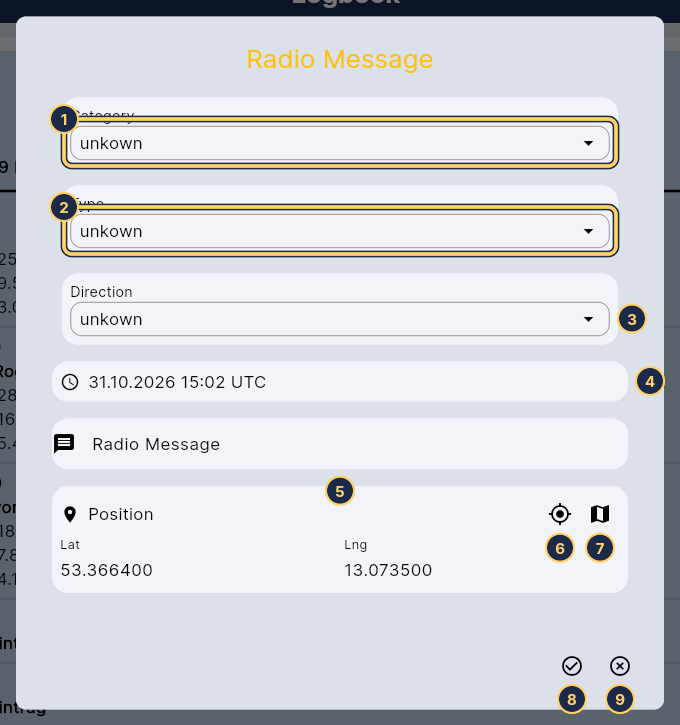
- Category – routine, safety, urgency or distress
- Type – all ships, group, individual ship or position report
- Direction – received, sent or relayed
- Time of the radio call in UTC
- Wording of the radio call
- Current position – take it from GPS
- Position on the chart – pick it on the chart
- Save
- Cancel
Logbook chart
If the day has routes, the entry shows a chart preview. A tap on it opens the chart in full size with the routes, events and radio calls of the day. There you can extend routes at the start or end, see Routes and recording. Distance and time under way of the entry are then recalculated.
Logbook as PDF
With PDF (2) in the overview you create the whole logbook as a PDF in portrait format: one entry per day with start and end time, chart and all details, plus an overall summary. The PDF opens in the PDF viewer of your device, on the desktop in the dialog for saving or sharing.
See also
- Navigation: record events, radio calls and engine running time under way.
- Routes and recording: where distance and time under way come from.
- Master data and templates: create your own event types.
- Mileage confirmation: the miles sailed for the crew.