User interface
Tafiya is built the same way on phone, tablet and desktop. After login you land on the home screen with your cruises. Each cruise opens its hub with all functions for the crew and, if you are the skipper, additionally for the skipper. In the settings you adapt the app to yourself. On every screen the question mark (13) at the top right opens the matching page of this guide in the browser.
How to get there
The home screen appears right after login. Everyone sees the cruise list; the buttons New cruise and Navigation exist only with skipper rights.
The home screen
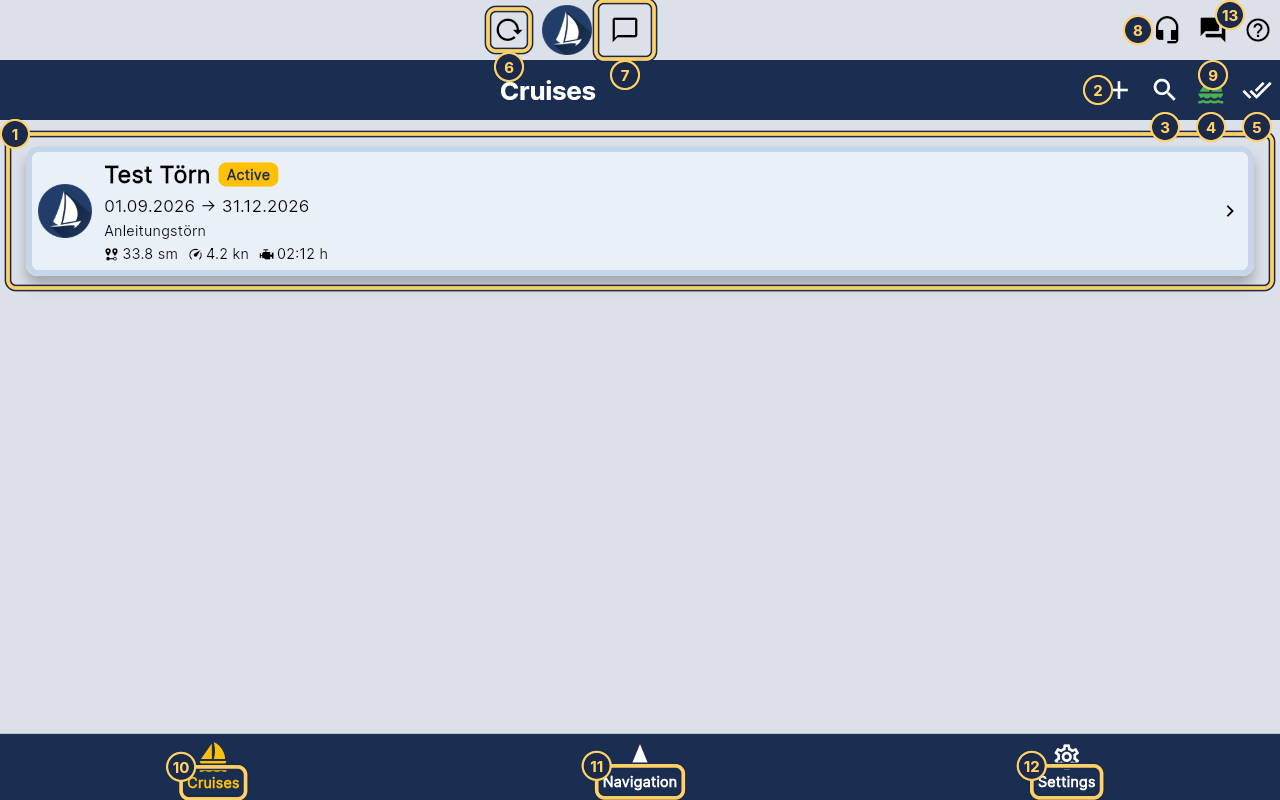
- Cruise – tap to open the cruise hub with all functions; “Active” marks the current cruise
- New cruise – only with skipper rights (trial period or purchased cruises)
- Search in all cruises, including the finished ones
- Current cruises show (green = selected)
- Finished cruises show
- Reload – fetch cruises and data fresh from the server
- Notifications – yellow when there are new ones
- Support – chat with the Tafiya support team
- Crew chat of the active cruise
- Cruises – this list
- Navigation – straight to the navigation chart of the active cruise; only for its skipper
- Settings – user, sailing career, master data, charts, weather, AIS, AI
- Help – opens the page of this guide for the current screen in the browser
The list shows your current cruises. The currently active cruise carries the badge “Active”. Below the period you see the description of the cruise (two lines at most) if the skipper has entered one. With (4) and (5) you switch between current and finished cruises; with (3) you search both. At the bottom (10, 11, 12) you switch between cruise list, navigation and settings.
Open a cruise
- Tap the cruise in the list (1).
- The cruise hub opens. Tap the tile you want there.
- The arrow at the top left takes you back.
The cruise hub
At the top is the cruise header with the key data (period, start and end place, description, distance sailed), below it the tiles. The On board section applies to all crew members.
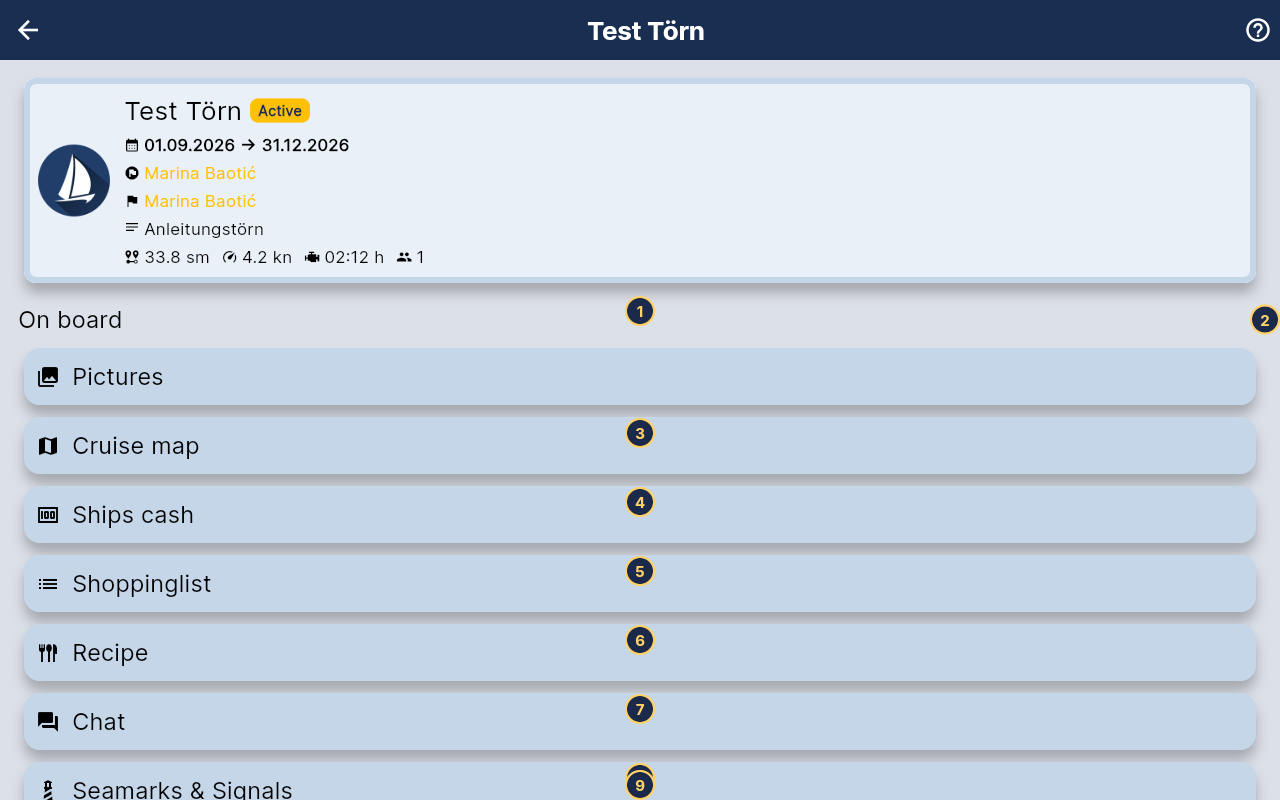
- Cruise header – name, period, start and destination harbour, distance, average speed, engine hours and crew size
- On board – functions for all crew members
- Pictures – shared photo album of the cruise
- Cruise map – view recorded routes and events
- Ships cash – record and settle expenses
- Shoppinglist – shop together
- Recipe – who cooks when, the cooking plan of the crew
- Chat with the crew
- Seamarks & signals – reference guide, works offline too
If you are the creator of the cruise or a co-skipper, the Skipper section follows further down.
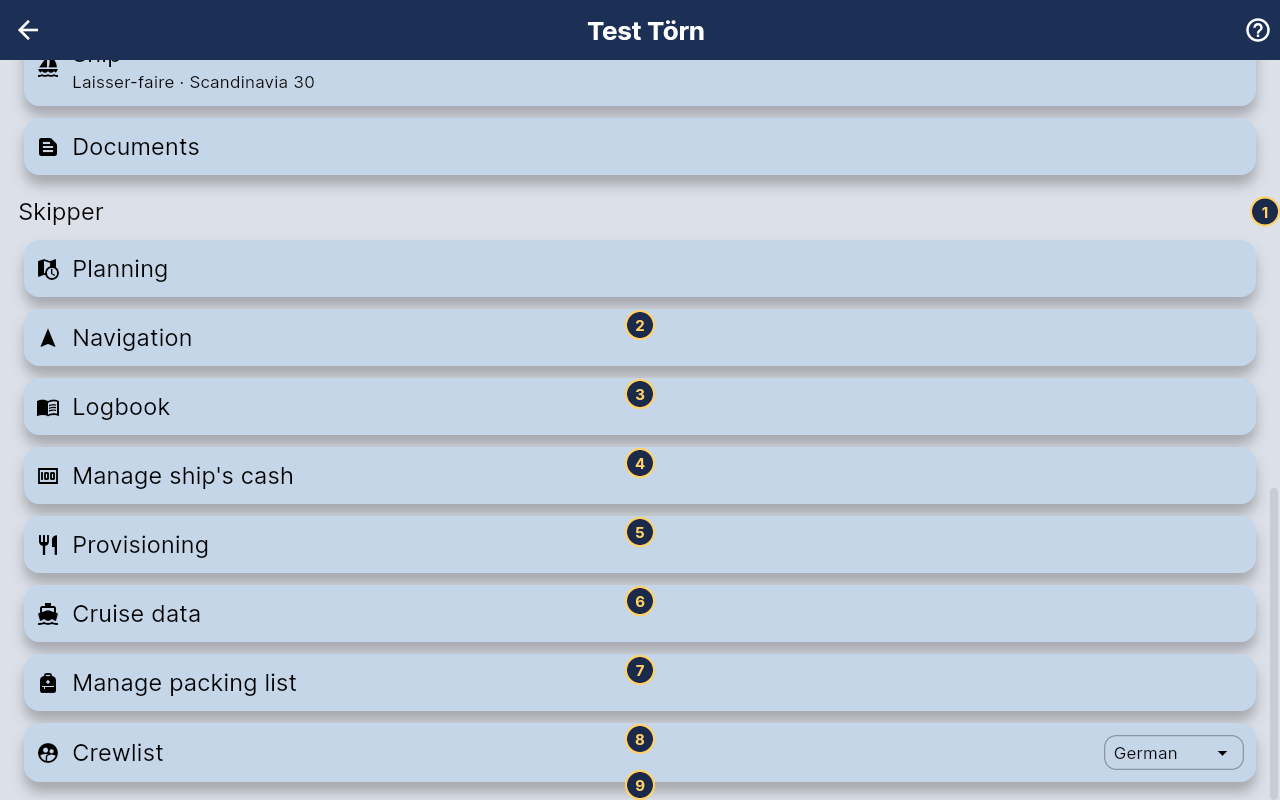
- Skipper – only for the creator of the cruise and the co-skippers
- Planning – create planned routes
- Navigation – chart with recording, events and anchor watch
- Logbook keeping
- Manage ship’s cash – check receipts, calculate the settlement
- Provisioning – prepare shopping lists and the cooking plan
- Cruise data – name, period, harbours, crew, ship, documents; this is also where the cruise is deleted
- Manage packing list – defaults for the crew
- Crewlist as PDF, on the right the language for it
Further down in the On board section follow the packing list (for crew members), the cruise diary, the mileage confirmation as well as ship and documents if the skipper has stored them. In the Skipper section, sync tiles for logbook and routes appear if the device still holds data that has not been transferred.
Good to know
- Links in notifications and chats are clickable and open the browser.
- If your session expires or was ended on another device, the app notices, shows a note and returns to the login. With automatic login active it logs you in again directly.
- At login the app checks its version: below the minimum version you must update, below the recommended version you can.
- If saving fails when you leave a screen, for instance without internet, you can choose whether to stay on the screen or discard the changes.
- Under way without a network you log in in offline mode, see Login.
See also
- Create a cruise
- Navigation: the chart behind the Navigation button (11).
- User: language, appearance and account.
- Support: the chat behind the headset (8).