Manage ships
You assign a ship with its technical data to each cruise. You create ships once and reuse them in further cruises. The crew sees the ship data in the cruise hub, together with an attached document, such as the ship's manual or the handover list.
How to get there
Open the cruise, tap the Cruise data tile in the cruise hub and scroll to the Ship section. The creator of the cruise and the co-skippers manage ships.

- Search – assign an already created ship to the cruise
- Create / edit – without a ship create a new one, otherwise edit the assigned ship
- Attach document – a document for the ship, such as the ship’s manual
- Remove document – delete the attached ship document
- Assigned ship – name and model
Assign an existing ship
If you already created the ship in an earlier cruise, simply look it up:
- In the Ship section tap the magnifier (1).
- Type the name or model into the search field; the list filters as you type.
- Tap the ship. It appears in the Ship section immediately.
- Save the cruise data with the tick at the top right.
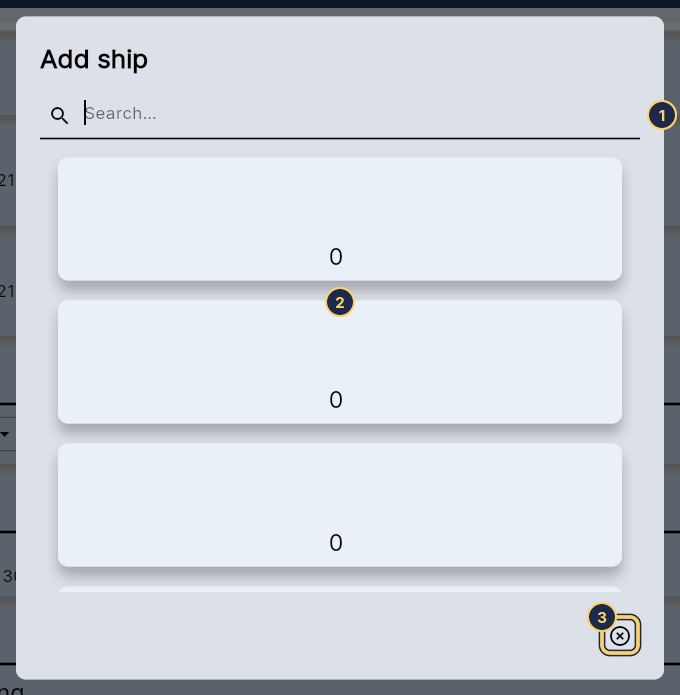
- Search – filters the list by name and model
- Ship – tap to assign it to the cruise
- Close without selecting
Create or edit a ship
With Create / edit (2) you open the ship data screen. If no ship is assigned to the cruise yet, you create a new one, otherwise you edit the assigned ship.
- In the Ship section tap Create / edit (2).
- Enter at least the Name of the ship (3). Further fields: model name, year of construction, length overall, beam, draught, cabins, berths, additional berths, toilets, maximum persons, rudder blades, engine type, engine manufacturer, fuel and water tank size and deposit.
- The question mark (4) next to each field explains the entry and its unit.
- Save with the tick (1). The back arrow saves as well.
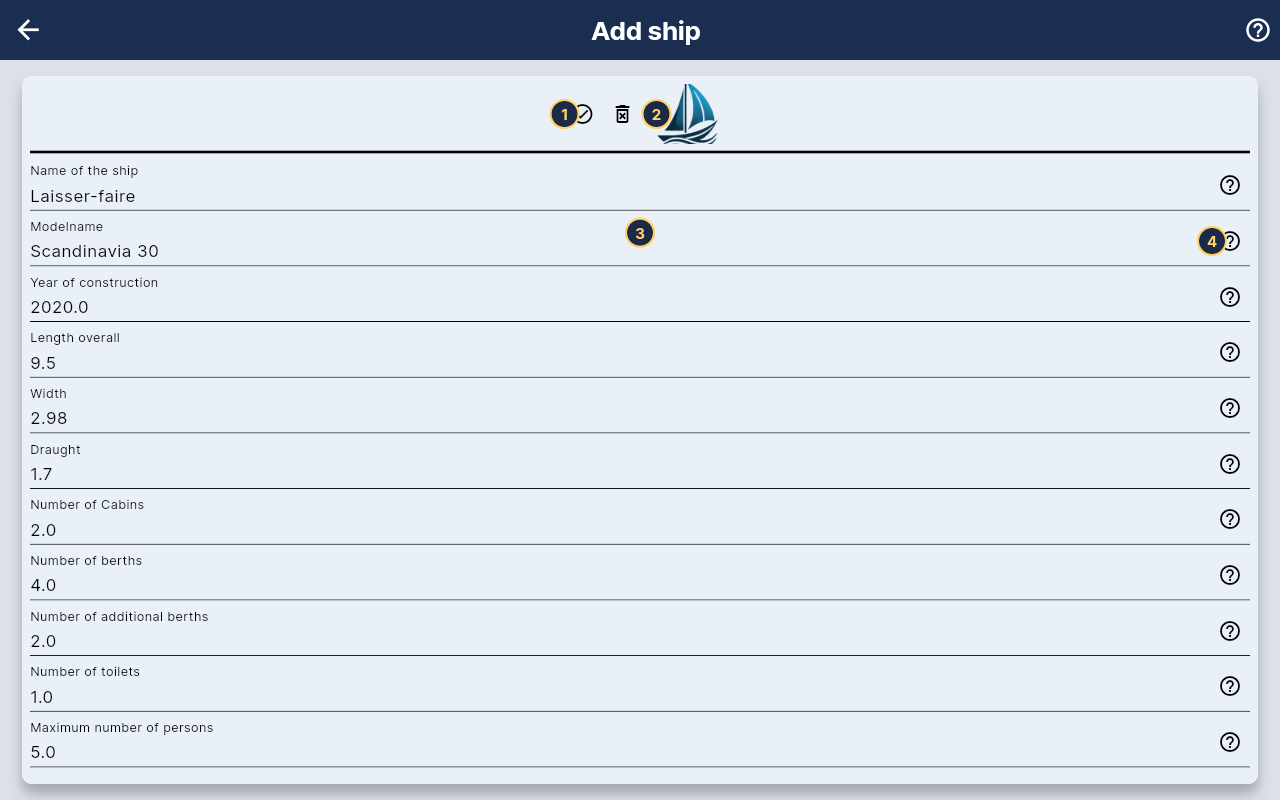
- Save – the back arrow saves as well
- Delete ship – only possible when no cruise uses the ship any more
- Name of the ship – required; below it model, year of construction, dimensions, berths, engine, tanks and deposit
- Help – explains the field and its unit
- You may enter numbers with a comma or a point, also with a unit (“10 m”). The decimal separator is available on iOS as well.
- Invalid entries are set to 0 on saving; the screen stays usable.
Attach a ship document
For each ship you can store a document, for example the ship's manual. The crew opens it in the cruise hub under Ship.
- In the Ship section tap Attach document (3) and choose the file. On the phone you can take a photo instead.
- With Remove document (4) you delete the attached document again.
Delete a ship
In the ship data screen you remove a ship from your list permanently with Delete ship (2). This is only possible if it is no longer used in any cruise. Otherwise the app names the cruises that still use the ship.
See also
- Cruise data: everything else you set on the cruise.
- Ship: how the crew sees the ship data.
- Documents: cruise documents from the crew's point of view.