Chat
With the chat you do not need a messenger group for the cruise. You write to the whole crew or to individual members, attach pictures and files and receive a notification when there are new messages.
How to get there
Open the cruise and tap the Chat tile in the cruise hub. A red dot on the tile indicates unread messages. All crew members of the cruise can see the chat.
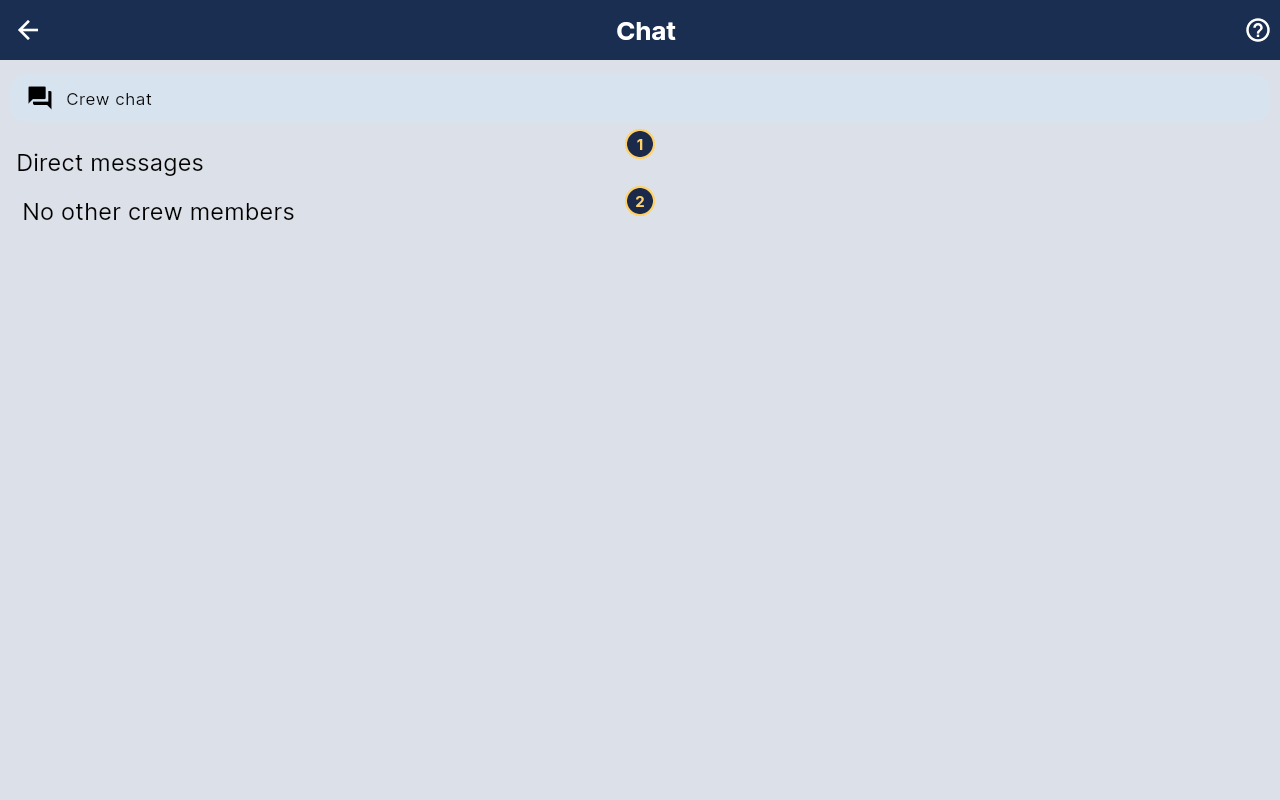
- Crew chat – group chat with the whole crew
- Direct messages – below it every crew member for a private conversation
Write a message
- Tap Crew chat (1) or a crew member under Direct messages (2).
- Write your message in the field at the bottom (1) and tap Send (2).
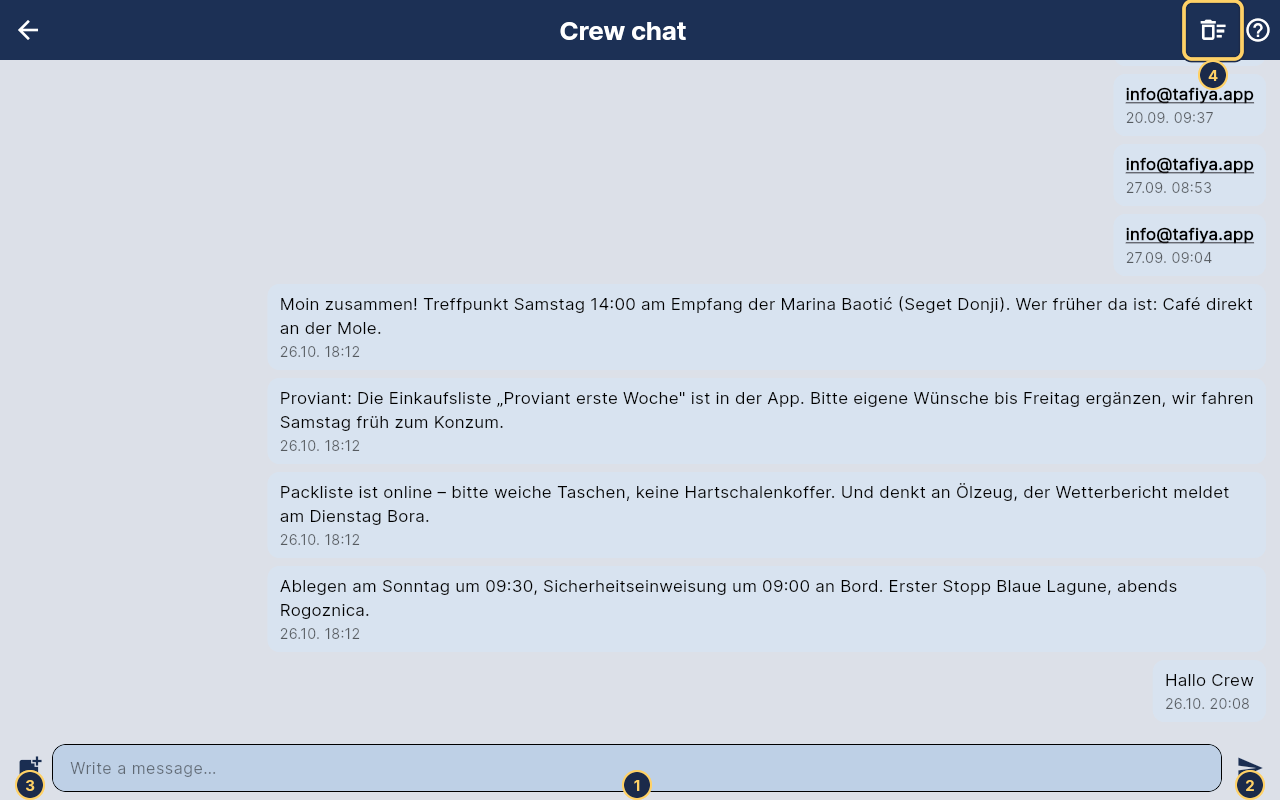
- Write message – links in the text become clickable
- Send
- Attach picture – from the gallery of the cruise or upload a new one
- Delete chat history – everything or only older messages; in the crew chat only the skipper
Links in messages are clickable. Your own messages are on the right, those of the others on the left with name and time.
Attach pictures and files
- Attach picture (3): choose a picture from the gallery of the cruise or upload a new one.
- Attach file (paper clip): attaches a PDF, for example. Tapping the attachment opens it.
Edit or delete a message
Press and hold one of your own messages and choose Edit or Delete. Edited messages are marked “edited”, deleted ones remain as a placeholder.
Delete the chat history
With Delete chat history (4) you remove all messages or only those before a certain date. In direct messages anyone may do this, in the crew chat only the creator of the cruise.