Ship
If the skipper has assigned a ship to the cruise, you see it in the cruise hub with name and type. If he has also stored a document or picture for the ship, for example the manual or the safety plan, you open it directly from there.
How to get there
Open the cruise and scroll in the cruise hub to the Ship tile. The tile only appears if the skipper has entered a ship in the cruise data. It is available to all crew members.
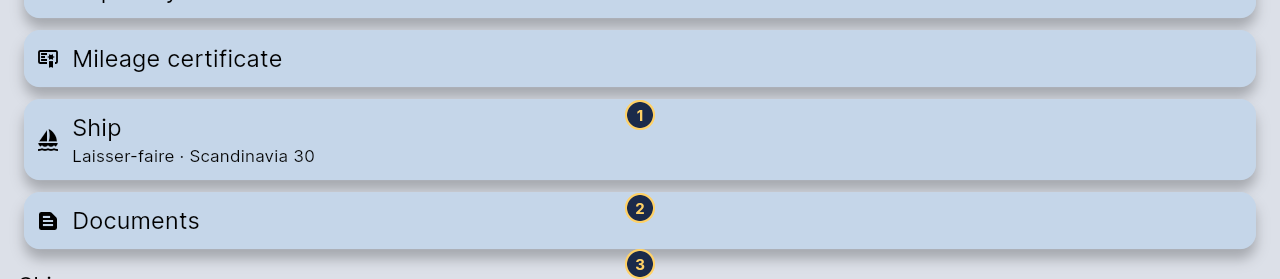
- Mileage certificate – creates the PDF with your nautical miles of this cruise and opens it
- Ship – name and type of the ship; the PDF symbol shows that the skipper has stored a document, a tap opens it
- Documents – opens the list of documents the skipper has assigned to the cruise
Open the ship's document
- The Ship tile (2) shows the name and type of the ship. The PDF symbol on the right means that a document is stored.
- Tap the tile. Tafiya downloads the document and opens it in your device's default app for PDFs or pictures.
Without a stored document, nothing happens when you tap.
See also
- Manage ships: how the skipper creates ships.
- Cruise data: how the skipper assigns a ship and the document to the cruise.