Cruise data
In the cruise data you as skipper maintain everything that describes the cruise: name, period, start and destination, description, crew, ship and documents. Here you also grant the support team access to the cruise if needed, or delete it. To create a cruise you need a skipper version of Tafiya, that is the running trial period or a purchased cruise quota, see Create a cruise.
How to get there
Open the cruise and tap the Cruise data tile in the Skipper area of the cruise hub. The creator of the cruise and the co-skippers can see and change the cruise data. Only the creator can delete the cruise.
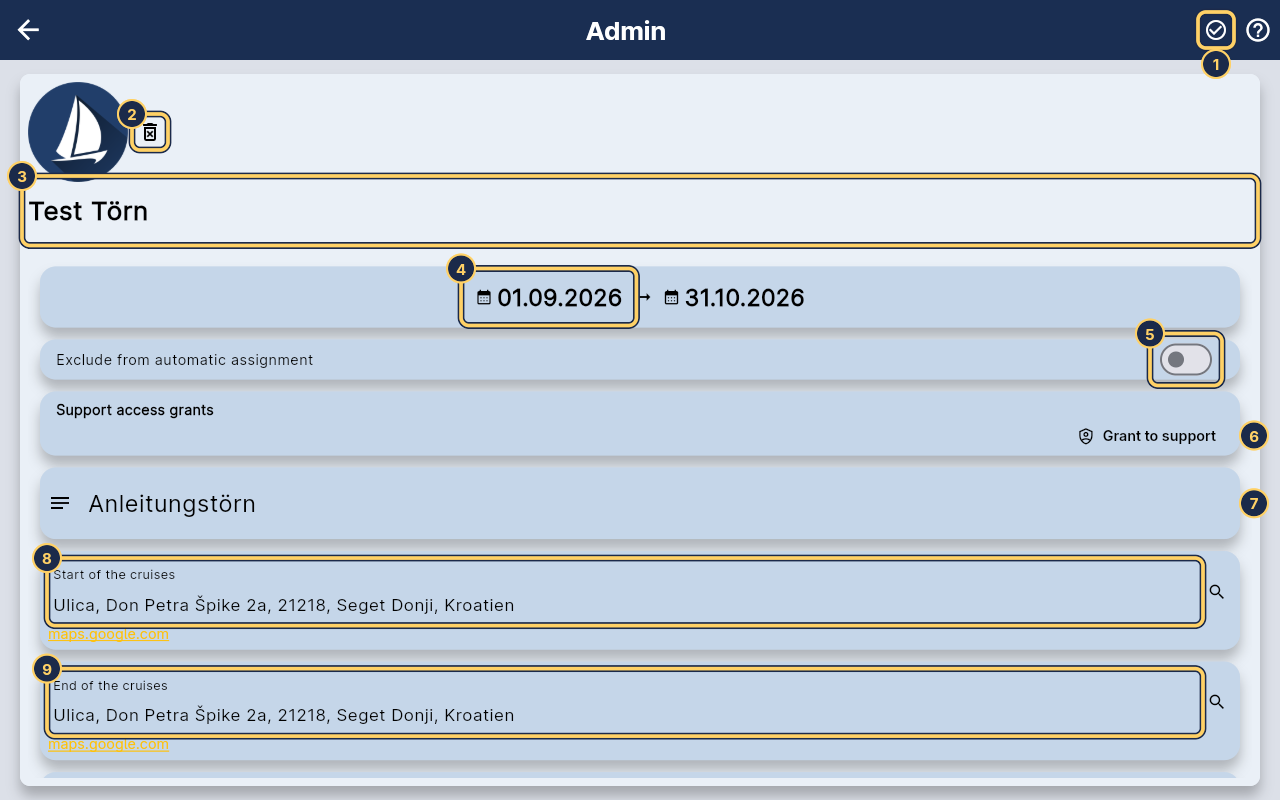
- Save – changes to the cruise data, including the crew, take effect only after saving
- Delete cruise – removes the cruise with all its data permanently (creator only)
- Name of the cruise
- Start date – tap to open the calendar; the end date is to the right of it
- Exclude from automatic assignment – this cruise no longer counts as the running cruise, even if its period matches
- Grant to support – open the cruise data to the support team for 24 h or 7 days; running grants are listed above
- Description – short text for you and the crew
- Start of the cruises – enter the place, the magnifier on the right looks it up via Google Places; below it the link to Google Maps
- End of the cruises – destination, search as for the start
Changes to name, period, description, places and crew take effect only when you save with the tick (1) at the top right. Documents and support access grants are saved by the app immediately.
Name and period
The period determines which cruise is currently running: if today's date lies within start and end date, Tafiya treats the cruise as the active cruise, for example for automatic route recording.
- Enter the name (3) of the cruise.
- Tap the start date (4) and pick the day in the calendar.
- Tap the end date next to it and pick the last day of the cruise.
- Save with the tick (1).
If two cruises overlap, switch on Exclude from automatic assignment (5) for one of them. That cruise is then no longer selected automatically as the running cruise.
Description, start and destination
The description (7) is a short text for you and the crew. Tafiya looks up start and destination via Google Places:
- In the field Start of the cruises (8) enter the name of the marina or harbour.
- Tap the magnifier on the right of the field or confirm with Enter.
- Pick the matching result from the list. A link to Google Maps appears below the field.
- Do the same with End of the cruises (9).
The start place is also the centre of the cruise map and the planning as long as there are no routes yet.
Grant the support team access to the cruise
In a support case you can make the data of your cruise accessible to the support team for a short time so that a problem can be narrowed down more quickly. Access is always limited in time and can be revoked at any time.
- In the Support access grants section tap Grant to support (6).
- Choose the duration: Grant 24 h or Grant 7 days.
- The app confirms for how many support accounts the cruise has been granted.
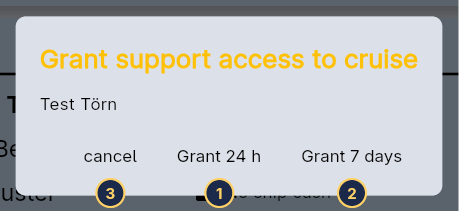
- Grant 24 h – access for one day
- Grant 7 days – access for one week
- Cancel – grant nothing
Running grants are listed in the Support access grants section with the name of the support account and the expiry time. With Revoke you end a grant early. After expiry it lapses by itself.
Crew
How you invite your crew, assign board roles and appoint co-skippers is described on the page Assemble the crew.
Ship
In the Ship section you assign a ship to the cruise, create a new one or attach the ship's documents, see Manage ships.
Documents
In the Documents section you store papers for the cruise, such as the charter contract, handover protocol or insurance. The crew sees them in the cruise hub under Documents.

- Add document – choose a file, on the phone also take a photo; saved immediately
- Delete document – permanently
- Document name – tap to open the document, press and hold to rename it
- Tap Add document (1).
- Choose a file. On the phone you can instead take a photo with the camera directly.
- The document appears in the list immediately and is saved.
- A tap on the name (3) opens the document.
- Press and hold the name to rename the document.
- With the bin (2) you delete a document permanently.
- If you cancel the file selection, everything stays as it was.
Delete the cruise
With Delete cruise (2) you remove the cruise with all connected data: pictures, logbook, routes, ship's cash and more, irrevocably. Ship data and users are kept. You confirm the deletion with an input in the dialog. Afterwards the app returns to the home page and closes an active navigation. See also Delete a cruise (FAQ).
See also
- Assemble the crew: invite fellow sailors, roles and co-skippers.
- Manage ships: create and assign a ship.
- Crew list: the crew as a PDF for the harbour office and marina.
- Create a cruise (FAQ) and Buy cruise quota (FAQ).