Login
With the login you access your centrally stored data from any device. No syncing between devices is needed; everything is immediately available everywhere.
How to get there
The login screen appears when the app starts, as long as automatic login is not switched on.
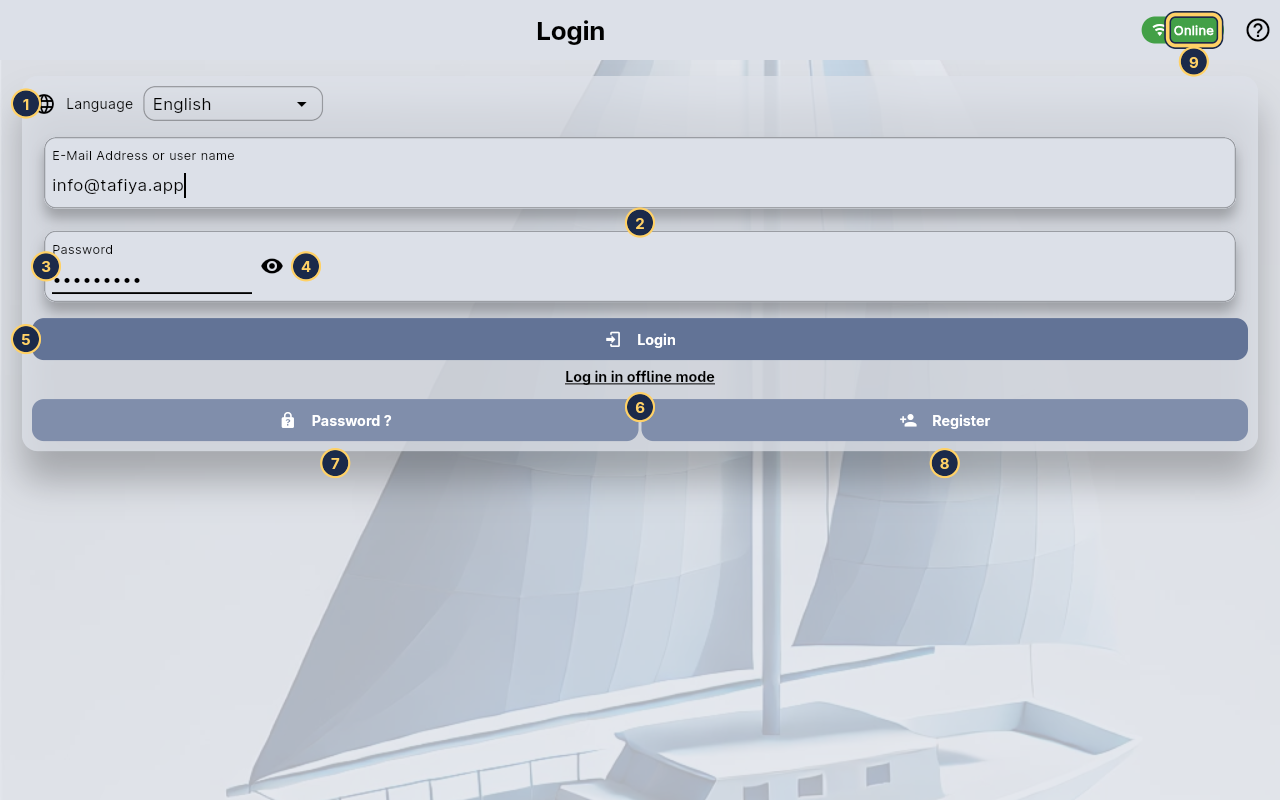
- Language – German, English, Croatian, Italian, French or Spanish; applies immediately to the whole app
- E-mail address you registered with
- Password
- Show password – displays what you typed in plain text
- Login – Enter in the password field works too
- Log in in offline mode – appears only if you have logged in on this device before; opens the app without internet with the data loaded last
- Password ? – request a new password if you have forgotten yours
- Register – create a new account
- Online / Offline – shows whether the device can currently reach the internet
Log in
- Choose the language if needed (1).
- Enter your e-mail address (2) and your password (3). With the eye (4) you check what you typed.
- Tap Login (5) or press Enter in the password field.
If your trial period has expired, the app tells you so at login. You can then carry on as crew or buy cruises.
Automatic login
So that you do not have to enter the password every time, switch on Automatic login under Settings, tab User. The app then logs you in directly at start. If your session expires or is ended on another device, it logs you in again by itself; without automatic login it returns to the login screen.
Log in offline
If you have logged in on the device before, the link Log in in offline mode (6) appears below the login button. It opens the app without internet with the data loaded last, for example under way without a network. At the top right (9) you see whether the device is currently online. Without a connection the app offers offline mode by itself when you log in.
Forgotten password
With Password ? (7) you request a link to set a new password, see Change password. No account yet? Then continue with Register (8), see Registration.
See also
- User interface: what awaits you after login.
- User: automatic login, language and appearance.